Self-Service Kiosk
Buying Guide
Architecting reliable unattended automation for retail and hospitality.
From self-checkout in supermarkets to ordering kiosks in QSRs, these interactive terminals reduce wait times and lower labor costs. But a kiosk that crashes, jams, or confuses users creates more frustration than it solves. This guide covers the essential hardware components required for 24/7 public environments.
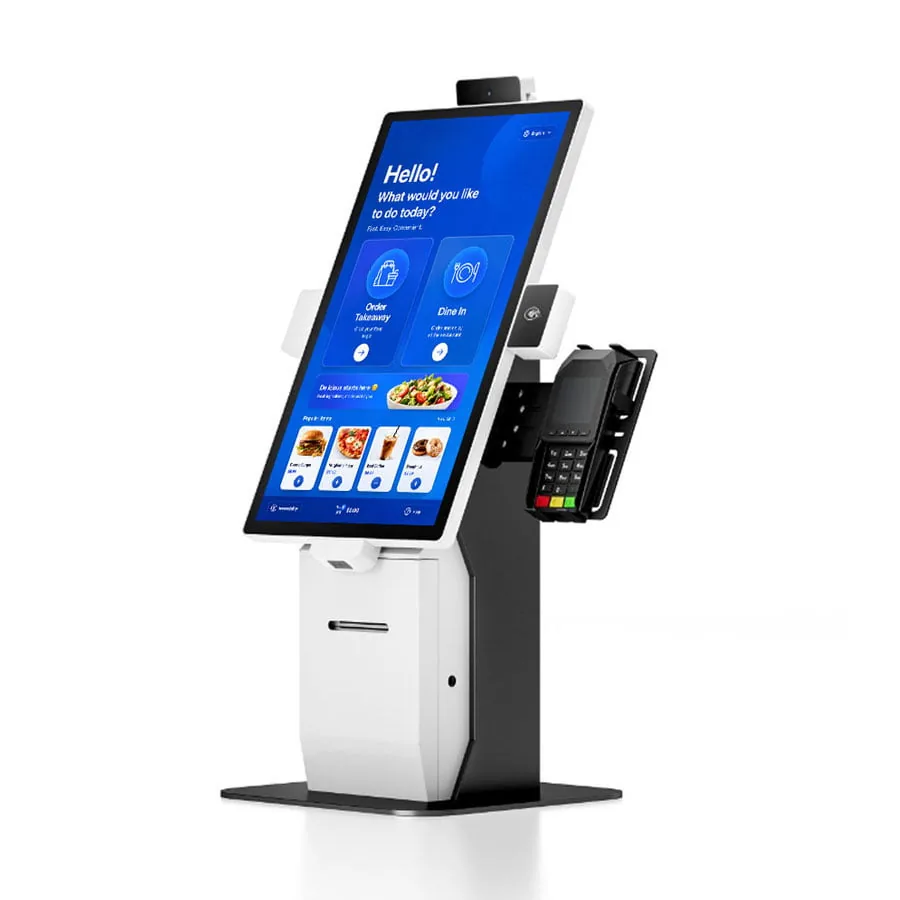
Touch Display & Glass: The Primary Interface
The screen is the face of your kiosk. Its size, brightness, touch responsiveness, and vandal resistance define the entire user experience.
15.6" - 19"
Compact
Suited to desktop ordering, queue management ticketing, and price checkers.
21.5" - 24"
Self-Checkout
The industry standard for QSR food ordering and supermarket self-checkout lanes.
27" - 32"
Large Format
Suited to mall wayfinding, interactive digital signage, and cinema ticketing.
- PCAP Touch Technology: Always specify Projected Capacitive (PCAP) touch. It supports true multi-touch, flat edge-to-edge glass designs, and is highly resistant to surface wear compared to old resistive screens.
- Brightness (Nits): Standard indoor retail requires 350-500 nits. If the kiosk faces a window or sits under an outdoor canopy, demand a high-brightness panel (700-1000+ nits) with an anti-glare (AG) coating.
- Glass Hardness: Ensure the touch panel uses tempered glass rated 7H+ to withstand scratches from rings, keys, and general public abuse.
Computing Unit & OS Lockdown
The internal PC must be industrial-grade (fanless preferred) to survive 24/7 inside a sealed metal enclosure. Just as importantly, the OS must be strictly locked down.
| Component | Basic (Web/Android Apps) | Recommended (Heavy POS/Windows) |
|---|---|---|
| Processor | ARM Rockchip / Intel Celeron | Intel Core i3 / i5 (12th Gen+) |
| RAM & Storage | 4GB RAM | 64GB eMMC | 8GB+ RAM | 128GB+ NVMe SSD |
| OS | Android 11/12 | Win 10/11 IoT Enterprise LTSC |
Software Security: Kiosk Mode
Never deploy a standard desktop OS to a public kiosk. Users will crash the app, browse the web, or access system files. Use native lockdown tools.
Set-AssignedAccess -AppUserModelId "YourPOS.App_1.0!App" -UserName "KioskUser"
# This forces Windows to ONLY load the POS app.
# No Start Menu. No Taskbar. No Ctrl+Alt+Del escapes.
Integrated Peripherals: Printer & Scanner
Receipt Printer
Kiosk printers are not desktop POS printers. They require specific unattended features.
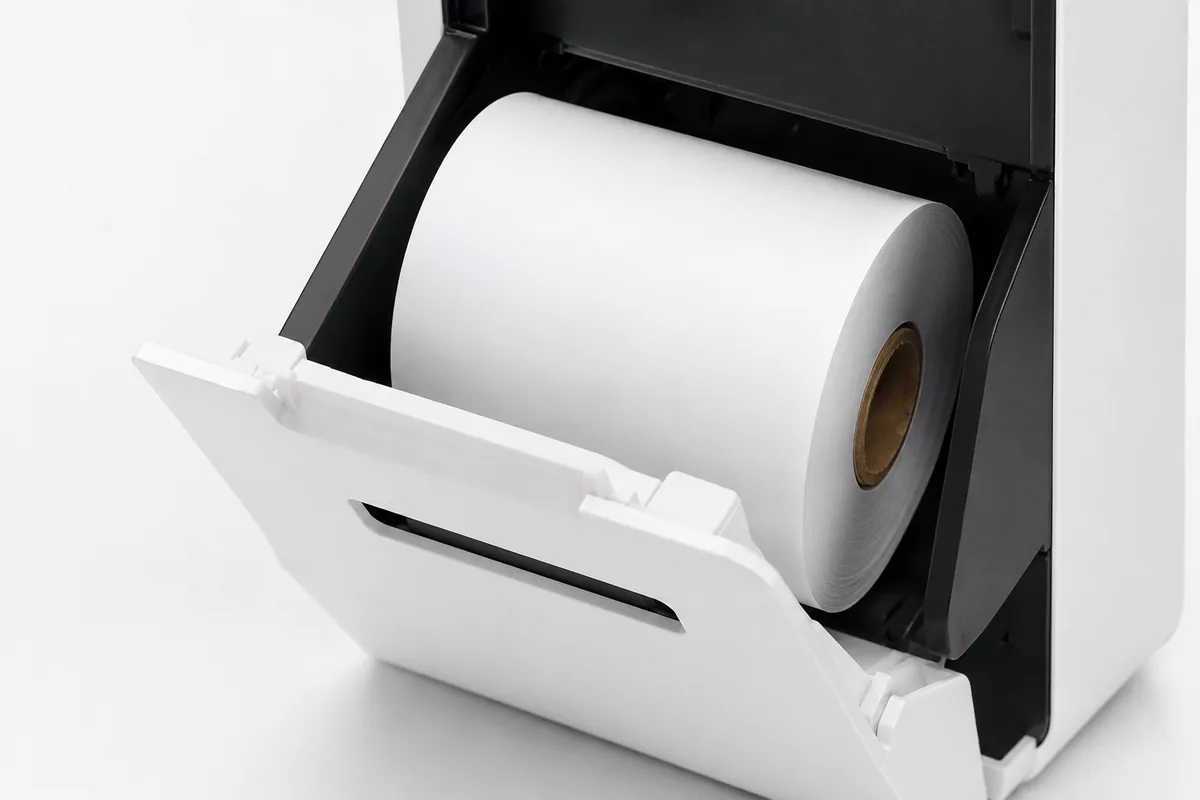
- Auto-Cutter (1M+ cuts): Essential. Users cannot tear paper manually from a flush slot.
- Presenter Mechanism: Ejects the ticket partially, then retracts it if the user forgets to take it (prevents floor litter).
- Paper Low Sensor: Triggers software alerts to staff. A kiosk without paper is dead.
Barcode Scanner
For self-checkout, scanning must be frictionless for untrained customers.
- 2D Omnidirectional: Reads 1D/2D barcodes from any angle without needing perfect alignment.
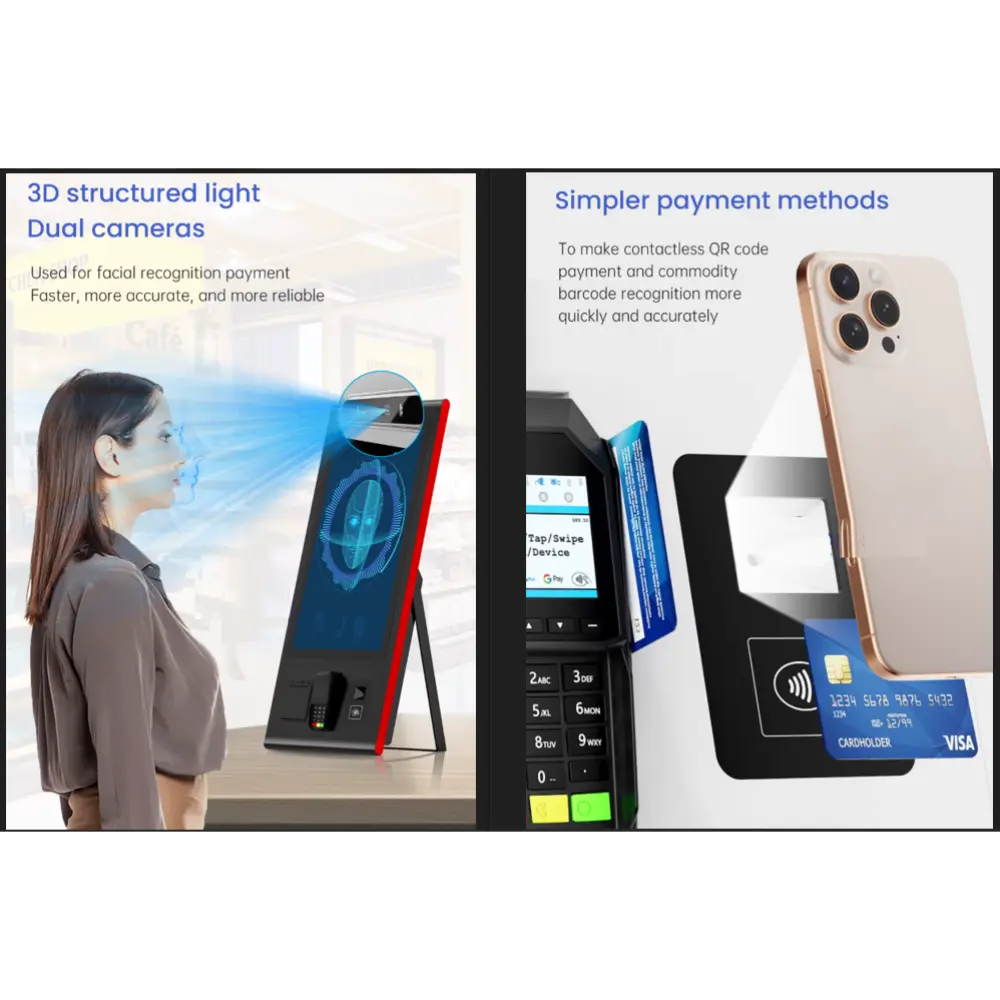
- Screen Reading: Must be capable of reading loyalty QR codes from highly reflective smartphone screens.
- Audio Feedback: A loud, clear beep to confirm scans in noisy retail environments.
Payment Module Integration
Unattended payment terminals must be robust and support modern digital wallets. Compliance certification for the payment stack is handled by your payment provider, not by the enclosure.
Ensure the payment bracket supports your chosen payment processor (e.g., Ingenico, Verifone, Stripe Terminal). It must support Contactless (Tap-to-Pay), which accounts for over 70% of kiosk transactions, alongside standard EMV Chip insertion.
For outdoor kiosks, ensure the payment terminal is weatherproof and features a motorized or anti-skimming card slot.
Physical Enclosure & Durability Ratings
Crucial for outdoor or food-service kiosks. IP65 ensures the enclosure is totally dust-tight and protected against low-pressure water jets (cleaning hoses or rain).
The highest standard for vandal resistance. An IK10 rated enclosure and glass can withstand a 5kg mass dropped from 40cm (20 Joules of impact).
- Material: Cold-rolled steel (1.5mm - 2mm) is standard. Use Stainless Steel for restaurant kitchens or medical environments.
- Thermal Management: Kiosks generate heat. Ensure the design includes intake/exhaust vents, passive heat sinks, or active cooling fans based on the processor's TDP.
Maintenance Access: Designing for Uptime
A broken kiosk costs money every minute it sits idle. The mechanical design must facilitate rapid repairs by store staff, not just engineers.
Kiosks are often pushed against walls or bolted back-to-back. Maintenance panels and paper-loading doors must open from the front via cam locks.
The printer, scanner, and PC should sit on slide-out rails or thumb-screw brackets. If a printer jams permanently, staff should swap it in 60 seconds.
Software to monitor CPU temps, paper low warnings, and push OTA app updates across 500 terminals simultaneously without dispatching technicians.
What Is a Self-Service Kiosk?
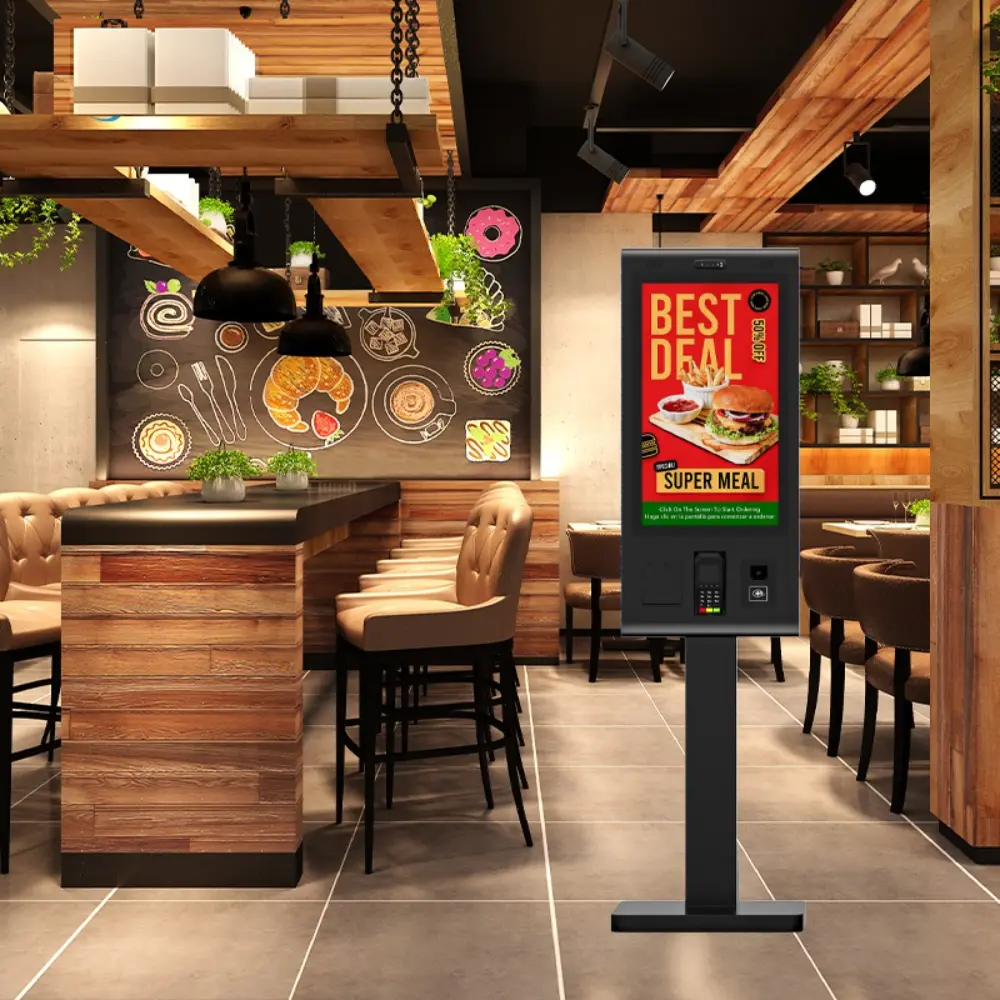
The short answer to "what is a kiosk?" is this: a self-service kiosk — also called an interactive kiosk, a self-service terminal, or simply a kiosk machine — is a freestanding or wall-mounted computer terminal that lets a customer complete a task without a staff member operating the device. (The word itself comes from the Turkish köşk, a small open pavilion; the kiosk definition in modern commercial use has narrowed to a self-contained terminal in a public space.) The task is transactional: place an order, pay a bill, check in for an appointment, print a ticket, or look up information.
The interface is designed for a first-time user, not for a trained cashier. No login, no training, no manual.
The session ends with something done — an order placed, a payment taken, a ticket printed. Not just content displayed.
Built to run continuously in public space, which demands commercial-grade hardware, OS lockdown, and self-recovery.
What Counts as a Kiosk — and What Does Not
The category boundary matters when you are specifying hardware, because the wrong category buys the wrong durability tier. Two near-neighbours are frequently confused with kiosks:
| System | Who operates it | What it does | Kiosk? |
|---|---|---|---|
| Digital signage screen | Nobody | Plays content only | No |
| Staffed POS terminal | Employee | Employee rings up the sale | No |
| Self-service kiosk | The customer | Customer completes the transaction | Yes |
| Vending machine | The customer | Fixed selection, no configurable UI | Edge case |
A kiosk sits between signage and POS: it borrows the signage-grade display on the front and the POS-grade peripherals inside, then adds an interface anyone can walk up and use. That middle position is why a kiosk project touches more of the business than a screen purchase — payments, peripherals, and operations all meet at the box.
Kiosk Types by Form Factor
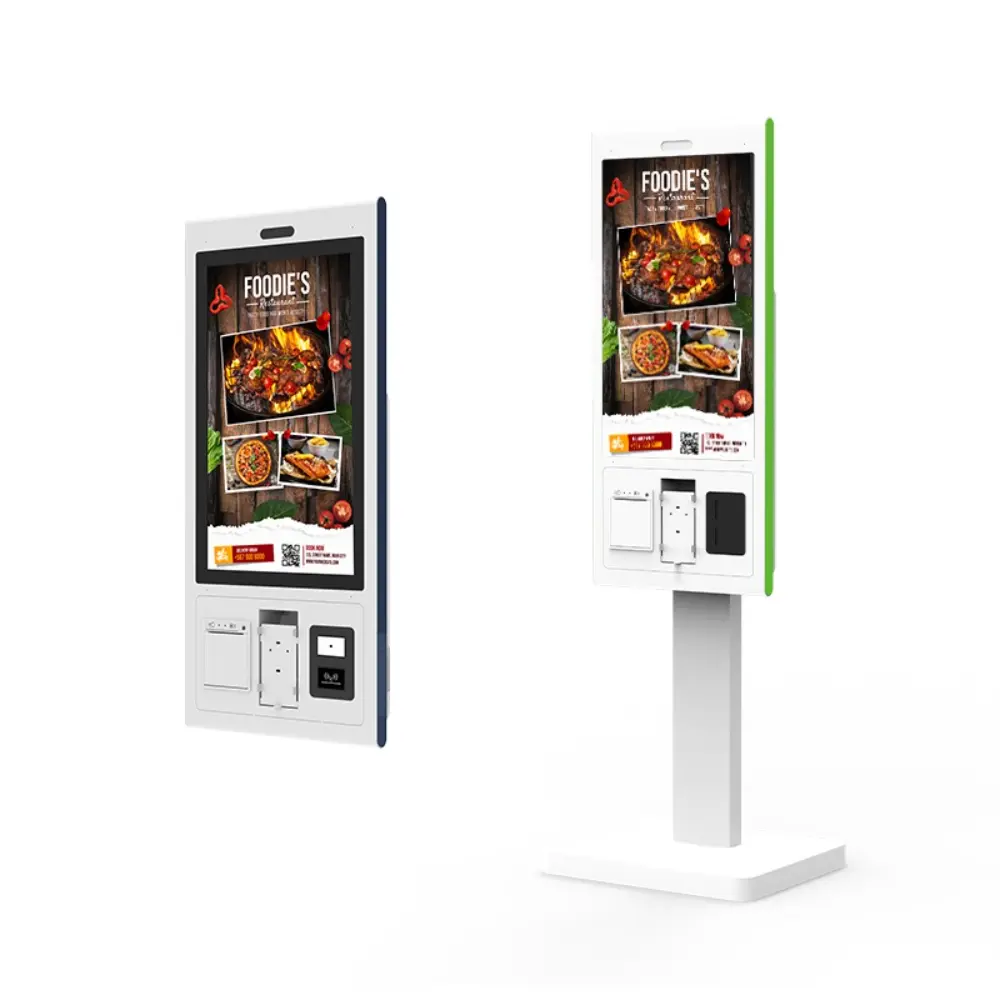
Form factor is the first decision, and it is set by the floor plan rather than the feature list. Walk the site before reading a spec sheet: where do queues form, where does power and network land, and is there floor space to give up?
Floor-standing kiosks
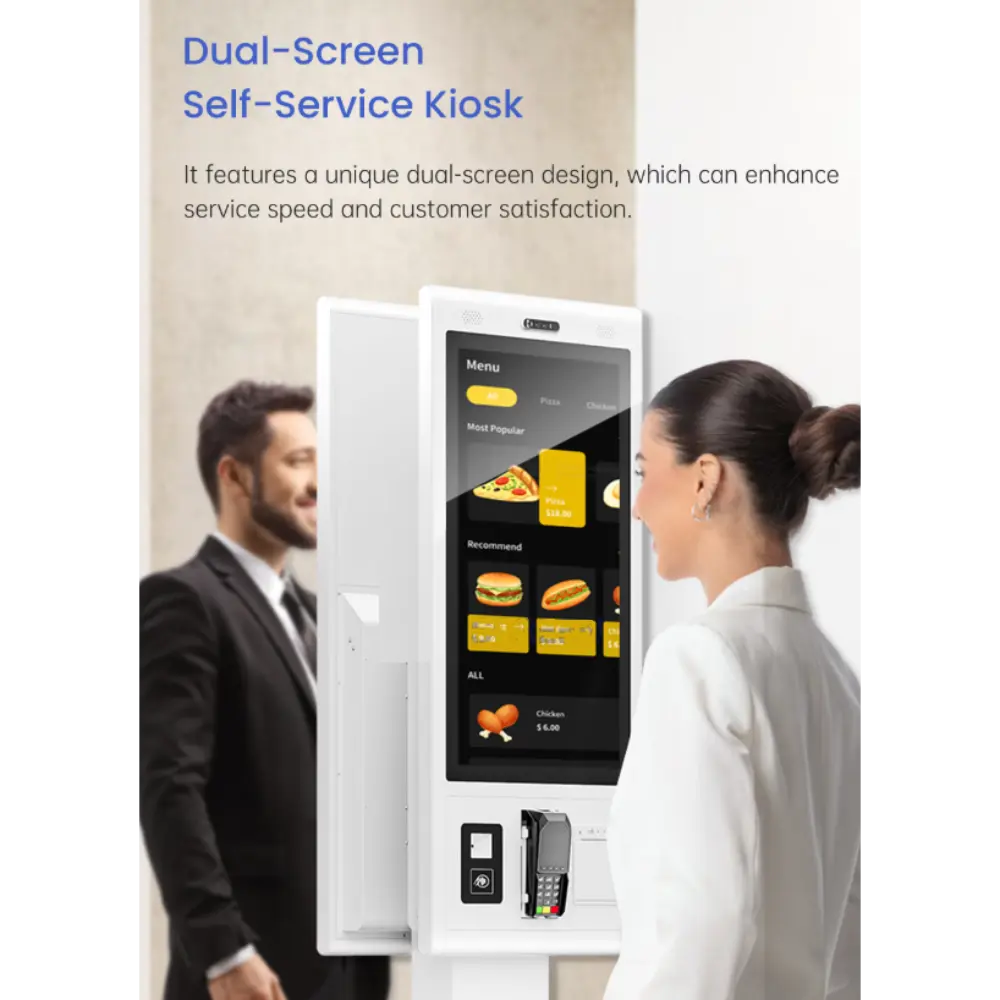
The flagship format: a full vertical unit at standing height with bays for printer, scanner, and payment module. The default for restaurant ordering, retail self-checkout, and lobby check-in.
Desktop & countertop kiosks
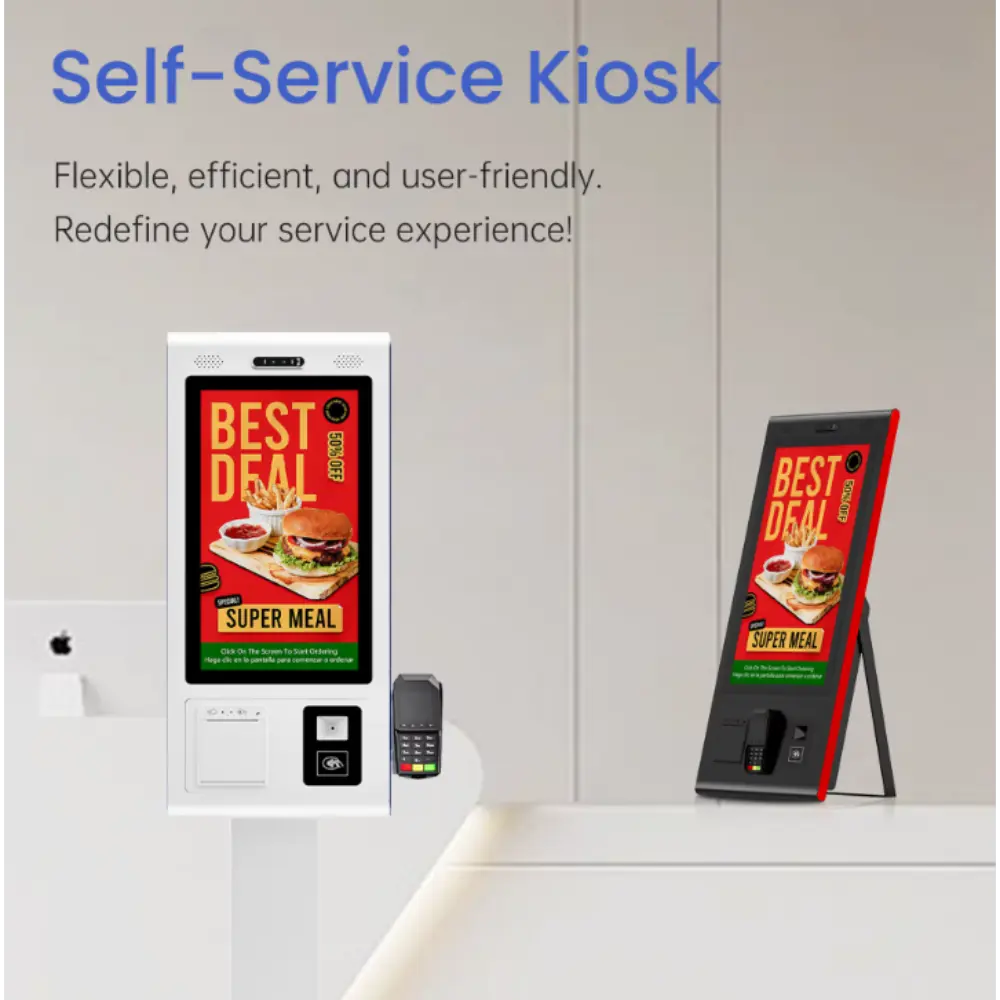
The same components compressed to counter scale, for checkouts, reception desks, and service counters where a floor unit would obstruct the aisle.
Wall-mounted kiosks
Screens fixed to walls in corridors and entryways, giving up zero floor space. Used for check-in, wayfinding, and information lookup.
Outdoor & semi-outdoor kiosks
Weather-sealed builds with high-brightness panels and IP-rated enclosures for exposed sites. Specify explicitly — do not adapt an indoor unit.
Two restaurants can need different kiosks: the counter-service one wants a desktop unit beside the till, the high-volume one wants floor-standing units with dual screens. Start from the floor plan and the transaction, then let the industry label follow.
Where Self-Service Kiosks Deploy
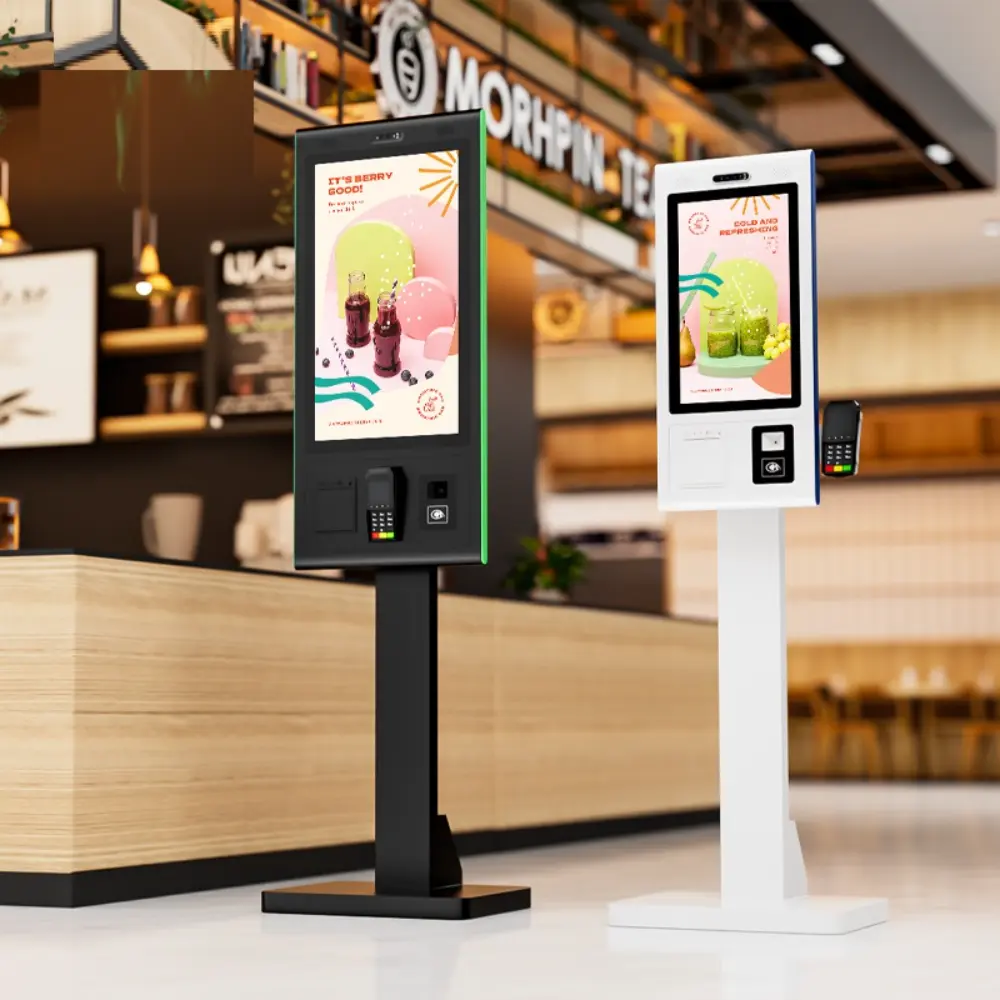
The same hardware platform serves very different jobs depending on the workflow loaded onto it. These are the deployment patterns that shape the specification.
The full order — menu browsing, modifiers, upsell prompts, payment — taken by the customer. Frees counter staff for handoff and service. Covered in our restaurant & QSR hardware guidance.
Customers scan, bag, and pay without waiting for a lane. Also used for price checkers, loyalty enrolment, and order pickup points — see our supermarket & grocery hardware guidance.
Patient check-in, appointment confirmation, queue ticketing, and wayfinding in lobbies. Accessibility requirements are strictest here.
Hotel check-in and concierge information, event ticketing, and building directories in airports, campuses, and city centers.
Utility and municipal bill payment, document issuance, and permit kiosks — a class that pairs a scan/print peripheral set with rugged enclosures.
Visitor registration, meeting-room check-in, and employee self-service in office lobbies, managed by the same IT team as the customer-facing fleet — a pattern we cover under smart office hardware.
Most operators conclude with a mix of formats on one platform. Keeping kiosks on the same platform family as the staffed POS terminals keeps peripheral drivers, spares, and management tooling common — covered in our comparison of kiosk versus traditional POS.
Android, Windows, or Linux: Let the Software Decide
The operating system is the specification most often chosen for the wrong reason — by vendor preference rather than by what your kiosk application needs. The rule is simple: pick the platform your software already runs on, and choose a hardware family that offers all three so the software decides.
The default for self-service. App- or web-based kiosk applications, cost-efficient ARM hardware, and native kiosk-mode lockdown at the OS level.
The answer when your software demands it — Windows-only POS suites, or web POS applications that must drive a receipt printer, historically a weak point on Android.
For engineering teams building and maintaining their own stack, where control over the image and the update path matters more than third-party software compatibility.
Why OS Lockdown Is Not Optional
An unattended terminal running a normal desktop will be crashed, browsed, or reconfigured by the public within a week. Lockdown is a hardware-adjacent specification: the platform must support a mode that boots straight into your application, offers no path to the desktop or system settings, and recovers automatically from a hang. On Android this is configurable at the factory; on Windows it is enforced through assigned-access policy. Whichever platform you choose, confirm the lockdown path before you order, because it constrains which mainboards qualify.
Environmental Ratings & Accessibility
Two specification sets decide whether a kiosk survives its location and whether all of the public can actually use it. Both are frequently skipped in a first specification and expensive to retrofit.
Ingress and Impact Ratings
The IP rating covers dust and water; the IK rating covers physical impact. Reading them together tells you where a unit can be installed.
| Rating | Resists | Typical placement |
|---|---|---|
| IP54 | Dust ingress and splashing water | Covered outdoor, food-service counters |
| IP65 | Dust-tight; low-pressure water jets | Exposed outdoor, wash-down areas |
| IK08 – IK10 | Mechanical impact and vandalism | Unsupervised public space, transit |
| NEMA 4 / 4X | Rain, sleet, snow, corrosion (North America) | Outdoor sites specified to NEMA practice |
Sunlight, Heat, and Cold
Indoor retail panels are typically rated 350–500 nits, which is unreadable in direct sun. An outdoor or window-facing unit needs a high-brightness panel — 1,000 nits and up — with an anti-glare surface and automatic brightness sensing. Temperature cuts both ways: sealed enclosures accumulate heat from the panel and the computing board, so warm climates need filtered or sealed active cooling, while cold-climate sites need internal heating to keep the panel and the battery inside their operating window. Specify the operating temperature range for your actual site, not a data-center default.
Accessibility: Designing for Every User
A kiosk that everyone must use is a kiosk that everyone must be able to reach. Accessibility is a hardware specification before it is a software one, because reach height, clearance, and operating force are fixed by the enclosure and the mount.
Interactive controls should fall within a comfortable reach range from a seated position, with clear floor space in front of the unit and knee clearance under forward-approach designs.
Card slots, printers, and buttons must be reachable and operable with one hand at modest force, without tight grasping or twisting.
Pair visual prompts with audio cues and tactile keys so the interface works for users with low vision or hearing loss.
Where the deployment must serve wheelchair users and standing users from the same unit, powered or multi-position height adjustment resolves the conflict directly.
Accessibility requirements vary by jurisdiction and venue type, and the applicable standard is a legal question rather than a hardware one. What we can do at the specification stage is confirm which enclosure heights, mounting options, and peripheral placements keep the accessible configurations open rather than ruling them out. Healthcare deployments carry the strictest requirements — see our healthcare kiosk analysis.
Reliability Metrics and Total Cost of Ownership
The purchase price of a kiosk is the smallest part of what it costs to run. The numbers that decide the real cost are the ones that predict downtime and the labor needed to prevent it.
| Metric | What it tells you | Why it matters financially |
|---|---|---|
| Panel lifetime | Rated hours to half brightness | Determines when the display — the most expensive single component — needs replacement |
| MTBF | Mean time between failures for the assembly | Sets the expected service frequency across a fleet |
| Duty cycle | Continuous 24/7 rating vs shift use | Consumer-grade parts fail early when run continuously |
| Serviceability | Front access, tool-less module swaps | Converts technician call-outs into a store-staff task |
| Remote management | Fleet monitoring and OTA updates | Avoids a site visit for every software change |
The total cost of ownership of a kiosk therefore has four layers: the unit cost, the installation and commissioning cost, the maintenance cost across the service life, and — usually the largest — the cost of the downtime when a unit is out of service in a busy location. That last layer is why modular design and front access are worth paying for up front, and why a cheaper unit with no field-replaceable printer frequently costs more over five years than a serviceable one.
Deployment scale changes the calculation again. At one or two units, per-site support is manageable; at a hundred sites, the fleet-management layer and the spare-parts strategy dominate. Our kiosk ROI analysis for retail chains works through how those layers scale with fleet size.
Frequently Asked Questions
What is a self-service kiosk in simple terms?
It is a standing touchscreen terminal that lets a customer complete a task by themselves — order food, check in, print a ticket, scan and pay — without staff operating the device. Inside it combines a commercial touch display, a computing platform running Android, Windows, or Linux, a steel or alloy enclosure, and transaction peripherals such as a printer, scanner, and payment module.
What is the difference between a kiosk and a POS terminal?
A POS terminal is operated by a trained employee to ring up a sale. A kiosk is operated by the customer, with no training, in public space. That difference drives everything else: kiosks need OS lockdown, vandal resistance, and self-recovery, while POS terminals need speed and peripheral flexibility for staff workflows. Most venues run both and specify them from the same platform family.
What are the main types of self-service kiosks?
Four form factors cover most deployments: floor-standing kiosks at 21.5–32 inches for restaurants, retail checkout and lobbies; desktop and countertop kiosks at 15.6–23.8 inches for service counters; wall-mounted kiosks for corridors and entryways; and outdoor kiosks, a specialized weather-sealed build class. The type follows the location, not the industry.
Should a self-service kiosk run Android or Windows?
Follow your software. Android suits app-based and web-based kiosk applications, with native kiosk-mode lockdown and cost-efficient hardware — it is the default for ordering, check-in and information kiosks. Windows is the answer for Windows-only POS suites or web POS systems that must drive a receipt printer. Linux fits engineering teams building their own stack. Choose a hardware family that offers all three.
What IP rating does an outdoor kiosk need?
IP54 is the practical minimum for a covered outdoor position, and IP65 is the usual specification for exposed sites because it is dust-tight and resists low-pressure water jets. In North American practice the equivalent is roughly NEMA 4 or 4X. Achieving an IP65 seal while still cooling the electronics normally requires a sealed cooling loop such as an air-to-air heat exchanger rather than open vents.
What components can be added to a kiosk?
The common additions are transaction peripherals: receipt and ticket printers, 2D QR and barcode scanners, mounts and wiring for payment terminals, NFC and RFID readers for membership or access cards, and cameras where the workflow requires them. Connectivity options include dual-band Wi-Fi, Ethernet, and 4G or 5G LTE for sites without stable cabling. On industrial platforms, serial interfaces such as RS232 and RS485 allow custom device integration. The rest of the buying guides sit in the buyers guide index.
How much does a self-service kiosk cost?
Cost depends on the form factor, screen size, computing platform, and which peripheral modules are integrated — a desktop unit and a sealed outdoor unit are different products. Rather than quote a figure that will not apply to your configuration, we build the specification from your workflow and quote against it. Tell us the location, transaction, and peripheral list and we will return a configured price.
Kiosk Hardware Buying Checklist
Review these structural and component specs before mass deployment.
Ready to Architect Your Kiosk Solution?
Our engineers can help you configure the perfect self-service hardware stack for your use case — from PC board selection to peripheral integration and custom enclosure design.
Request a Kiosk Consultation