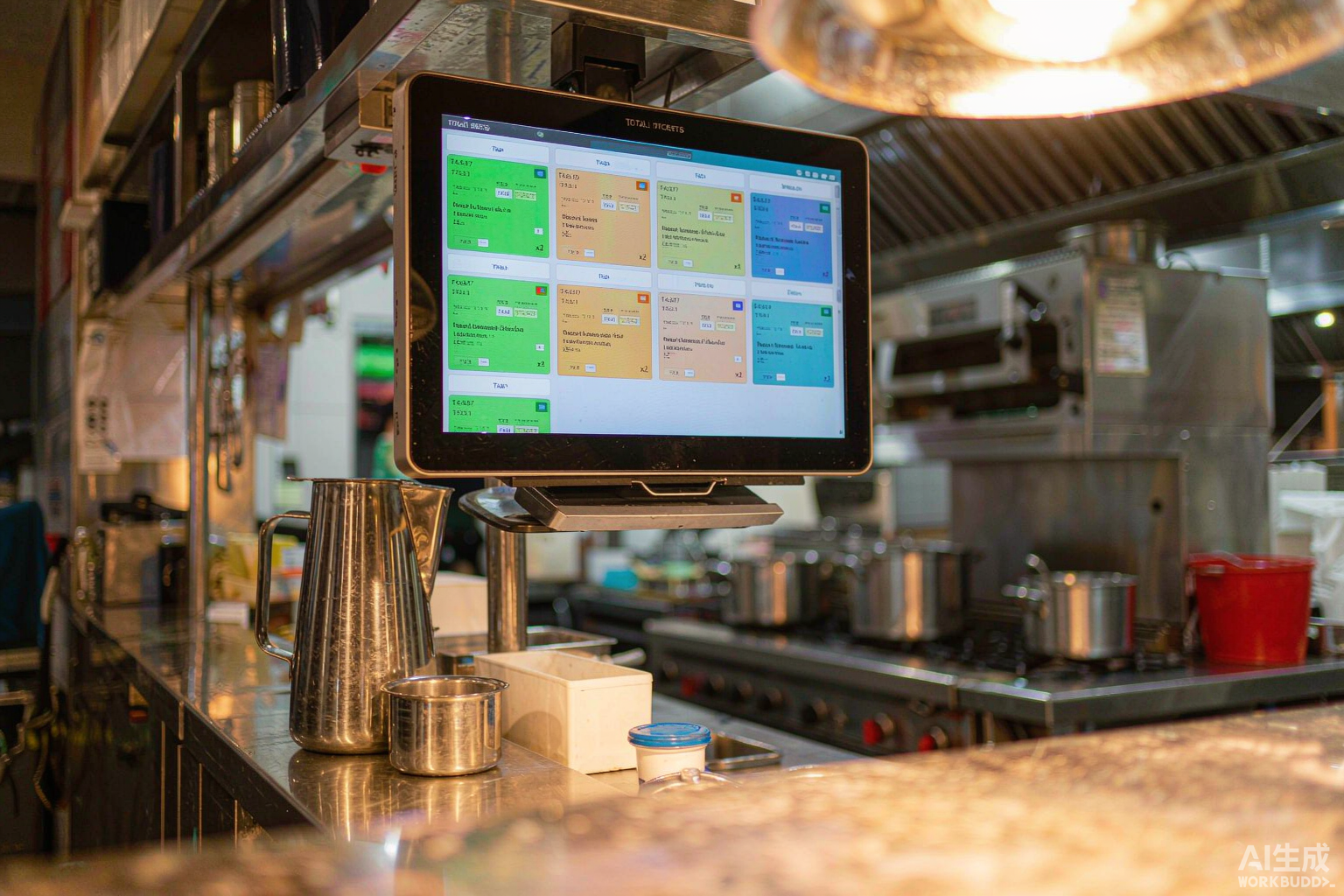
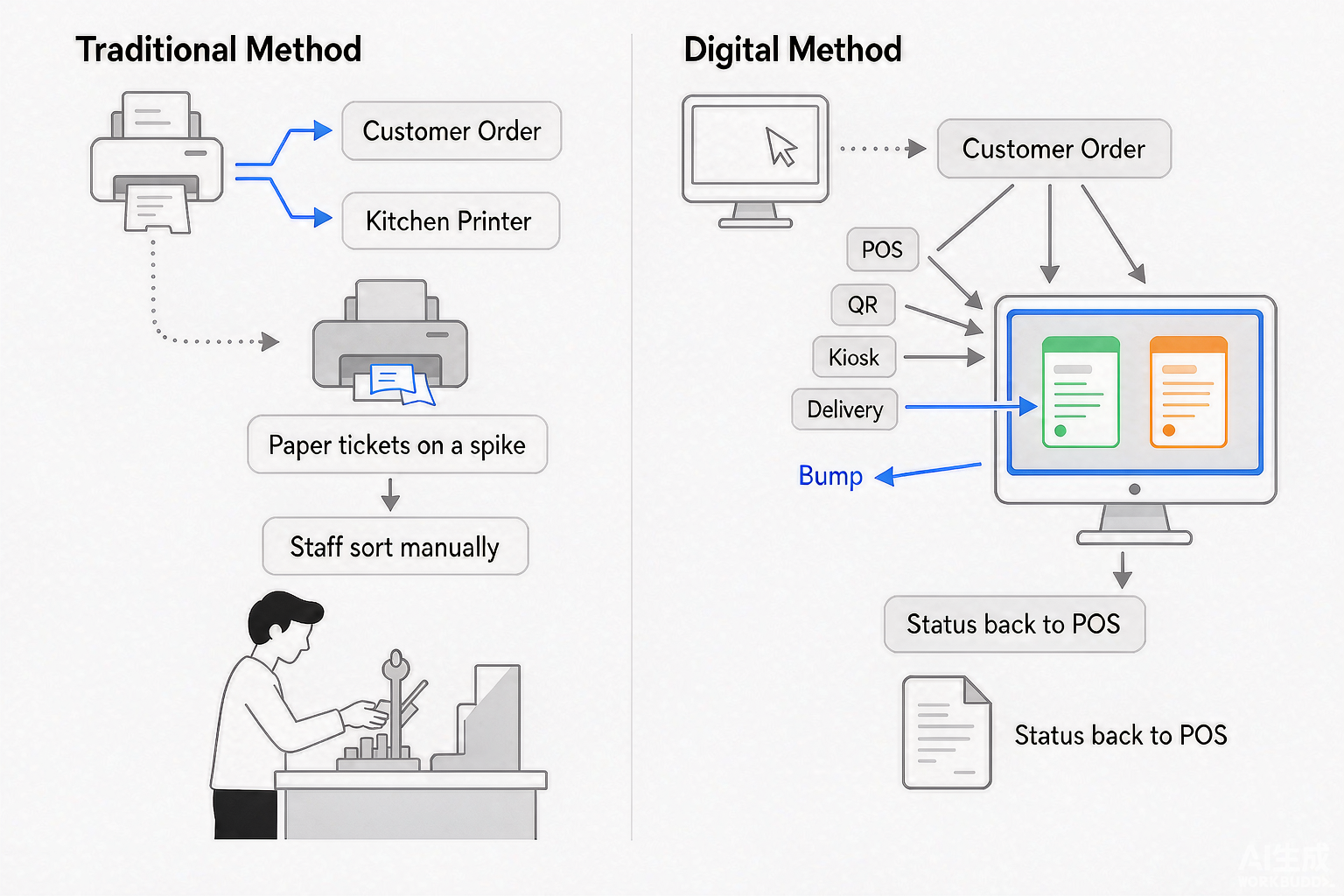
A kitchen display system (KDS) is the screen in the back of house that replaces the paper ticket rail. Orders arrive from the POS, a QR ordering page, a self-service kiosk or a delivery app, and instead of printing on a thermal roll they appear as color-coded cards that a line cook bumps when the plate goes out. A KDS is not POS software and it is not a monitor you buy off a shelf — see how it fits into a full quick-service restaurant POS setup. It is a workflow layer, and the hardware that carries it has to survive heat, grease, steam and a wipe-down at the end of every shift.
This guide covers what a KDS is, how it differs from the kitchen printer most restaurants already own, what the hardware actually consists of, what it costs in 2026, and how to pick screens that will still be running in year five. If you have already decided you need one and only want the hardware shortlist, skip to our KDS hardware range.
What Is a Kitchen Display System (KDS)?
A Kitchen Display System (KDS) is a digital order-management system that displays incoming orders on screens installed at kitchen stations. It takes the order data your POS already captures and presents it where the food is actually made, replacing the printed ticket as the primary record of what is outstanding.
The practical definition matters more than the acronym. A KDS does four things a printer cannot do:
- It holds a live queue. Every open order exists on one screen at once, sorted by age, not by when someone happened to tear off a slip.
- It timestamps every ticket. The clock starts when the order fires, not when a cook notices the paper.
- It routes by station. Grill items go to the grill screen, cold items to the salad station, drinks to the bar — automatically, from one order.
- It records what happened. Bump times and completion times become data you can review, which is the part that usually pays for the system.
A KDS is not the same as a customer display screen. A customer display faces the guest at the counter or the pickup point and shows the order total and tax invoice. A KDS faces the line. They are different devices doing different jobs, and a restaurant can have one, both or neither.
Nor is a KDS the same thing as restaurant POS software. The POS takes the order and takes the money. The KDS is what the kitchen looks at. Many POS platforms bundle a KDS module, which is convenient, but the display itself is still a separate piece of hardware you mount in a hostile environment.
What Does KDS Stand For?
KDS stands for Kitchen Display System. The abbreviation is used so consistently in the restaurant industry that most operators say "KDS" and rarely spell out the full term — which is why "what does KDS stand for" and "what is KDS" are among the most common ways people search for this topic.
The acronym is sometimes confused with two unrelated terms. Neither is the restaurant KDS:
| Term | What it actually means | Used in |
|---|---|---|
| KDS (restaurant) | Kitchen Display System — an order screen in the back of house | Hospitality, food service |
| KDS (medical) | A branded nutrition or dialysis documentation system | Clinical and dietetic software |
| KDs | Kilodaltons — a unit of molecular mass | Biochemistry and lab work |
In the restaurant context you will also see KDS screen, kitchen screen, kitchen monitor and kitchen display used interchangeably. They all point at the same device. "Kitchen printer" is the thing it replaces, and it is worth being precise about that difference because a printer is still the right answer for a lot of kitchens — we cover the full trade-off in our kitchen printer vs receipt printer comparison.
KDS vs Kitchen Printer: Which Does Your Kitchen Actually Need?
A kitchen printer is cheaper, simpler and works when the network is down. A KDS gives you a shared live queue, timers and reporting. Neither is universally better, and the honest answer for many restaurants is a hybrid — a KDS on the main line with a printer kept as backup or for one specific station.
| Dimension | Kitchen printer | Kitchen display system (KDS) |
|---|---|---|
| Order format | Paper ticket on a roll | Digital card on a screen |
| Order tracking | Ticket position on a rail — no reliable status | Real-time status per ticket, visible to every station |
| Timers and aging alerts | None. Someone has to be watching | Automatic — tickets change color as they age |
| Multi-station routing | One printer per station, coordinated by calling out | One order routes to multiple screens automatically |
| Amendments and cancellations | Reissue must be clearly marked to avoid double prep | Ticket updates in place and shows what changed |
| Multi-channel orders (QR, kiosk, delivery) | Each channel needs its own printer | All channels land in one queue |
| Reporting | None — no start or completion times | Ticket times, station bottlenecks, peak-hour load |
| Consumables | Paper rolls and print heads, ongoing | None |
| Upfront cost | Low | Higher, especially across several stations |
| Dependency | Local network or USB; keeps working in an outage | Screens, power and network — needs a documented failure plan |
| Training burden | Near zero | Short adjustment period; needs a station map |
Where a kitchen printer still wins
There are kitchens where a printer remains the correct and cheaper choice, and pretending otherwise sells people hardware they will not get value from:
- Single-station, low-volume operations. A food truck, a coffee counter or a four-item stall with one cook. Yelling the order across six feet is a working system.
- Kitchens without a stable network. A printer on a local cable does not care whether the internet is up.
- Operations where the chef genuinely prefers paper. Some cooks build plating logic off a physical slip on a rail. That is a real workflow, not a habit to correct.
- Restaurants still finding their menu and service flow. A KDS does not fix a chaotic kitchen; it shows you the chaos in higher resolution. Stabilize the menu first.
Where a KDS pulls ahead
The tipping point is almost always station count plus channel count, not revenue. If tickets regularly need input from more than one station, or if orders arrive from more than one channel, the printer setup starts generating its own bottleneck:
- More than one cooking station. The moment the grill and the cold station both need to see the same order, routing starts paying for itself.
- Multiple order channels. Dine-in, QR table ordering, self-service kiosks and third-party delivery all landing in one queue instead of three separate printers.
- Measurable ticket-time problems. If servers are regularly checking on food, or remakes happen more than a couple of times a service, timers and aging alerts move that number.
- Full-service coursing. Keeping courses timed across a multi-course menu is close to impossible on paper.
How to decide in three questions
- Do you have more than one cooking station? If yes, routing alone usually justifies a KDS. If no, a printer is probably enough.
- Can you name a ticket-time problem? If average ticket time is above target, if staff chase orders, or if remakes happen more than twice a service — a KDS will move the needle. If service is already humming, the gain is smaller.
- How many order channels do you receive? If you are printing from a POS, a QR page and two delivery apps, the printer count is already the problem.
A hybrid is a legitimate end state, not a compromise. Many kitchens run a KDS as the primary workflow and keep one printer at the expo station or as the documented fallback for a network outage. The thing that matters is that the fallback is written down and that staff have a way to identify orders already prepared, so switching systems mid-service does not produce duplicate plates.
How a Kitchen Display System Works
At the simplest level the flow is linear: an order is taken, the POS routes it, the KDS displays it, the kitchen bumps it, the status returns to the POS. The engineering is in the routing rules and the state machine behind the bump.
The order path, step by step
- Order capture. A server enters the order on a POS terminal, a guest orders at a self-service kiosk, or an order arrives from an online or delivery platform.
- POS routing. The POS applies its routing rules — which item goes to which station, how modifiers and dietary notes are attached, whether the order fires immediately or waits for coursing.
- Transmission. The ticket is pushed over the local network to the relevant KDS screens. A well-configured system keeps working on the local network even if the internet connection drops.
- Display. Each station screen shows only the items that station owns, sorted by age, with modifiers, quantities and any allergens called out in text rather than in a cook’s handwriting.
- Bump. When the plate goes out, the cook bumps the ticket — by touching the screen or by pressing a bump bar, a physical button strip for kitchens where nobody wants to touch a greasy panel with wet hands.
- Status return. The POS records the completion time. The expediter sees the order complete and the check can proceed.
Station routing: the part most deployments get wrong
Routing is where a KDS either becomes an operational tool or a slower printer. A single order for a burger, a salad and two drinks should not appear in full on all three stations. It should split: patty and bun to the grill, salad to the cold station, drinks to the bar. The expediter sees the whole order; each cook sees only their part.
| Station pattern | Typical setup | When it fits |
|---|---|---|
| Single screen | One KDS for the whole line | Small kitchens, one cook, simple menus |
| Hot / cold split | Two screens — grill and cold station | Most full-service restaurants; the point where routing starts paying |
| By station | Three to five screens — grill, saute, fry, cold, dessert | Busy multi-station kitchens with a defined expo role |
| Expo plus stations | Station screens plus one expo screen showing the whole order | Full-service dining where coursing and order completeness matter |
| Expo only | One screen at the pass, tickets called to stations verbally | Lower-volume operations transitioning off paper gradually |
A common failure is skipping the station map and configuring routing to "everyone sees everything." That is not a KDS deployment, it is a louder printer, and staff will reject it within a week. The screen count is an output of the station map, not an input.
The Hardware Inside a KDS: Screens, Mounts and Bump Bars
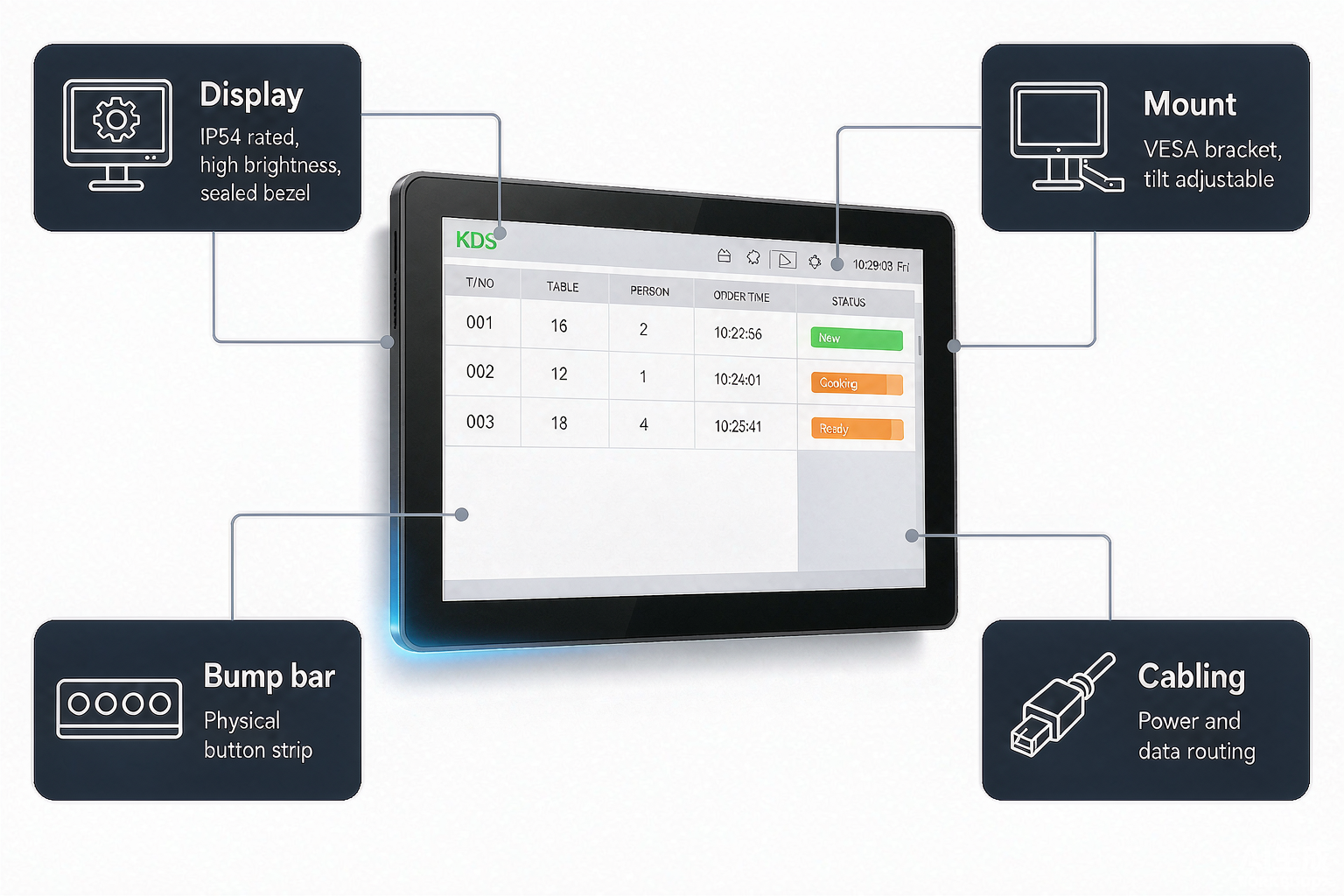
A KDS deployment is four pieces of hardware, and the screen is only one of them. Budgeting for the display and forgetting the rest is the most common costing surprise.
| Component | What it does | What to watch for |
|---|---|---|
| Display | Shows the ticket queue at the station | Rated for kitchen heat and grease; IP54 or higher; adequate brightness for overhead light |
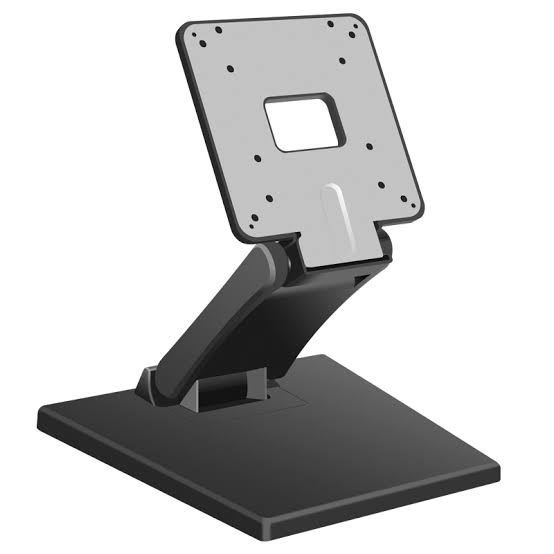
| Mount | Holds the screen at eye level without using counter space | VESA pattern, 15–30 degrees of tilt to reduce glare, under-shelf or pole options |
| Bump bar | Physical button strip to complete a ticket without touching the screen | Worth it for high-volume kitchens and any station with wet or greasy hands |
| Cabling and network | Power and data to each screen position | Often the hidden line item — routing above a pass can require an electrician |
What "kitchen-rated" actually means
A consumer monitor or tablet on a cold station or a coffee counter is genuinely fine. Directly above a fryer or on a wash-down line it is not, and it will fail sooner than the price difference suggests. The specification that matters is a combination of three things:
- Ingress protection. Look for an IP54 rating as the floor and IP55 or higher where steam and spray are constant. This is dust and water-splash protection, and it is the single clearest durability marker on a spec sheet.
- Brightness. Kitchen lighting is harsh and the screen sits at an angle. A low-brightness panel washes out under overhead light, which is how a display ends up unreadable at exactly the moment it matters.
- Sealed front and cleanable surface. Kitchen surfaces get wiped daily with chemicals. A screen with an open bezel or a consumer finish will not survive that routine, and a sealed front panel with a chemical-resistant surface is what makes daily cleaning possible.
Screen size, touch and mounting
POS touch screen monitors in commercial ratings are the starting point for most KDS builds. Readable at working distance is the only correct screen-size criterion. Common commercial sizes run from around 15 inches at a single compact station up to 23 inches or more for an expo screen viewed across a pass. Bigger is not automatically better — an oversized screen at arm’s length is harder to scan than a modest one at working distance.
Touch screens give the most flexibility in busy kitchens, but touch is not the only option and it is not always the best one. Many high-volume lines pair a touch screen with a bump bar so routine ticket completion happens on a physical button rather than on glass. Some kitchens run non-touch displays with a bump bar exclusively. The right answer depends on your software workflow: confirm the KDS application supports the input method you plan to use before buying the screen.
Mounting keeps counter space free, which in a kitchen is always at a premium. VESA mounting is the common standard and supports wall brackets, pole mounts and under-shelf brackets. Viewing angle and cable routing should both be decided before installation rather than after — repositioning a mounted screen with routed cabling is a full re-install.
Fanless design and thermal management
Kitchen ambient temperature sits well above an office, and fat and flour in the air clog a fan faster than ordinary dust. A KDS built on fanless industrial hardware avoids the moving part that fails first, and designed thermal management matters for the same reason. This is the difference between commercial kitchen hardware and a repurposed office PC, and it is visible in the reliability curve rather than in the spec sheet.
What a Kitchen Display System Costs in 2026
A KDS has four cost components that vendors present in different ways, which is what makes quotes hard to compare: hardware, software subscription, installation, and ongoing support. Published 2026 pricing from the vendor side clusters fairly tightly once you normalize for what is included.
| Tier | Hardware per screen | Software per screen / month | Best for |
|---|---|---|---|
| Entry | $200 – $400 | $20 – $30 | Independent, 1–2 stations |
| Mid | $400 – $700 | $30 – $60 | Fast-casual, 2–4 stations |
| Rugged / enterprise | $700 – $1,200+ | $60 – $80+ | Multi-unit, high volume, wash-down lines |
These tiers are not arbitrary. A commercial-grade screen with an IP55 enclosure and a high brightness rating genuinely costs more to build than a consumer tablet, and the durability premium is real: a commercial unit lasting five years in a kitchen costs less per year than a consumer unit failing after eighteen months and requiring replacement mid-service.
The costs that are usually missing from the quote
The number on the quote sheet is the starting point. Three categories get left out, and they are the reason two quotes for apparently the same system can diverge by thousands:
- Mounts. Roughly $40–$200 per screen. Almost never in the headline price.
- Bump bars. Roughly $80–$250 each, where the workflow calls for one.
- Cabling and electrical work. Running power and network above a pass is electrician work, commonly $300–$1,200. Most two-to-four-screen kitchens spend $500–$2,000 getting installed, and this is the line item operators miss most often.
- Third-party integration setup. Where your KDS is not native to your POS, expect a bridge or integration fee, commonly $200–$800.
What a real deployment costs
| Kitchen size | Screens | Year-one cost | Monthly software after year one |
|---|---|---|---|
| Small café | 1 | ~$800 | ~$40 |
| Two-screen bistro | 2 | $1,300 – $3,000 | $40 – $160 |
| Four-screen casual dining | 4 | $2,400 – $6,400 | ~$80 – $200 |
| Six-to-eight-screen QSR | 6–8 | $5,400 – $14,400 | ~$150 – $480 |
Software is usually charged per screen, not per location, and that is the detail that catches operators out. A six-screen kitchen at $25 per screen is around $150 a month, or roughly $9,000 over five years — before any change in screen count. Screen count only ever grows, so it is worth asking every vendor what the seventh screen costs and whether per-location pricing exists.
Is it worth it?
The return is throughput and fewer mistakes rather than a line item you can point at. Kitchens moving off paper commonly report cutting one to three minutes from average ticket time, and each avoided remake saves roughly $18–$30 once food, labor and the likely discount are counted. Cutting two remakes a service pays the software on three screens. Most full-service operations report recouping the hardware within about 90 days through reduced remakes and faster table turns.
If your POS plan already bundles a KDS module, take it. Integration is instant, the menu is already there, and there is one support number instead of two vendors pointing at each other when something breaks mid-service. The display hardware is still yours to choose — and the module is cheap only if the screen behind it survives the kitchen.
KDS by Kitchen Type: Which Format Needs What
The same technology serves a coffee counter and a hundred-cover dining room, but the configuration is nothing alike. Matching the format to the setup is what prevents both overspending and underbuying.
| Kitchen type | Screens | Key requirement |
|---|---|---|
| Food truck / single stall | 0–1 | Usually a printer is enough; a tablet KDS works where counter space allows |
| Coffee shop / counter service under 50 orders/hour | 1 | One screen at the bar or pass; a printer alone is often sufficient |
| Café with 2–3 stations | 2 | The tipping point — routing starts paying for itself here |
| Quick-service (QSR) | 2–4 | Compact footprint, bump bar compatibility, high-brightness panels near fryers |
| Full-service restaurant | 3–5 | Coursing control, expo screen showing whole orders, timed course firing |
| Cloud kitchen / multi-channel | 2–3 | One queue for POS, QR, kiosk and delivery channels; close to essential |
| Food court / multi-brand | Per brand | Shared hardware with per-brand routing and separate reporting |
Quick-service and fast-casual
QSR kitchens are built around speed and a compact footprint. Screens sit close to the line, often above the pass on pole mounts so several staff can read the same display, and bump bars are common because hands are frequently wet or gloved. Heat exposure is high near fryers, which is exactly where the rugged tier earns its premium — and also where buying rugged everywhere else wastes money.
Full-service dining
Full-service is where coursing and order completeness matter most. The typical layout is station screens plus an expo screen at the pass. The expo sees whole orders and decides when a table’s courses fire; the station screens see only their own items. Timed course firing is the feature that distinguishes a real full-service KDS from a digital ticket board.
Cloud kitchens and multi-channel operations
Where orders arrive from a POS, a QR ordering page and two or three delivery platforms at once, a KDS is close to essential. A printer setup for that many channels becomes its own bottleneck — one printer per channel, each a separate point of failure, none of them coordinated. The KDS value here is consolidation: every channel lands in one queue with one status model.
Cafés and small operations
For a small café with one preparation point and a limited menu, a single well-positioned printer can deliver a stable workflow, and adding a KDS is overhead the operation does not need to carry. This is the segment where "do I need a KDS" has a genuine no. A restaurant can start with a printer and add a screen later as volume or channel count grows, and that staged path is common.
Choosing KDS Hardware: A Buyer’s Checklist
Software and integration come first. The screen is downstream of the workflow, and buying hardware before confirming that your POS can route, split and manage kitchen orders in the way your kitchen actually works is the most expensive mistake in this category.
Before you buy anything
- Confirm POS integration. Does your POS support KDS routing, station splitting, modifier handling and real-time status updates? Native integration where the KDS is built by the same vendor as the POS syncs more tightly and gives you single-vendor support. If your POS is not on a vendor’s native list, confirm third-party API support in writing before purchasing hardware — mismatched integrations are a leading cause of KDS deployment failure.
- Draw the station map. Which stations exist, which items belong to each, and who bumps what. Screen count is an output of this, not a guess.
- Decide the input method. Touch screen, bump bar or both. Confirm the KDS application supports the method before buying hardware that assumes a different one.
- Test the failure path. Disconnect the network mid-order and power down a screen. Measure what happens. If the answer is "the kitchen stops," a printer fallback is not optional (our thermal printer guide covers what to keep on hand).
- Simulate a real peak. Enter a multi-station order with modifiers, amend it after sending, cancel an item, then reprint or redisplay. Measure training time and operator errors.
Hardware shortlist criteria
| Criterion | What to specify | Why it matters |
|---|---|---|
| IP rating | IP54 minimum; IP55+ for wash-down lines | Dust and water-splash protection is the clearest durability marker |
| Brightness | High-brightness panel for overhead kitchen lighting | Low-brightness screens wash out at exactly the wrong moment |
| Front surface | Sealed, chemical-resistant, easy to wipe | Daily cleaning with kitchen chemicals destroys consumer finishes |
| Cooling | Fanless where possible, with designed thermal management | Fat and flour in the air clog fans; the moving part fails first |
| Mounting | VESA-compatible, 15–30 degree tilt | Glare control and counter-space recovery |
| Input | Touch, bump bar or both, matched to your software | Workflow fit beats hardware specification |
| Screen size | Readable at working distance, not simply the largest | Oversized screens at arm’s length are harder to scan |
Compare quotes properly
Put both quotes on the same page with the same rows: screens and their tier, mounts, bump bars, cabling, setup fee, monthly software, contract length and replacement screen price. Fill every row for both, and where a vendor will not give you a number, write "unknown" rather than zero — zero is what they are hoping you assume. Then total at twelve months and at sixty. If the two quotes cross over somewhere between, you have learned the real decision: the cheaper-today option is a bet that you will not still be running this in five years.
Common KDS Deployment Mistakes
Most KDS failures are configuration failures, not hardware failures. The hardware is usually the last thing to blame and the first thing blamed.
| Mistake | What it looks like | The fix |
|---|---|---|
| Routing everyone to everything | Every screen shows every item; staff cannot find their own work | Route by station. Each cook sees only their items; expo sees the whole order |
| Canceling the fallback too early | Printer removed before the KDS has survived a real peak | Keep a printer as documented backup for at least one full month |
| No station ownership | Tickets sit unbumped because "someone else" has it | Assign responsibility per station and per bump, in writing |
| Too many status steps | The interface is slower than calling the order out | Reduce to the statuses that change behavior: new, in progress, done |
| Consumer hardware over the fryer | Screens fail in 6–18 months and fail again | Commercial rated where it is hot; consumer is fine where it is not |
| No documented failure plan | A screen reboot mid-service stops the line | Written fallback process plus a printer, tested before go-live |
| Training on day one | Staff meet the system during a live service | Demo a week before launch, train by role, cheat-sheet the main actions |
On training specifically: set up a demo unit about a week before go-live so staff can play with it in a no-pressure environment. Train by role — line cooks need bumping and modifier reading, the expediter needs recall and full-board management. Put a laminated cheat sheet with screenshots near each screen. Keep a "super user" on every shift for the first few weeks. Then hold a short review after week one and use the KDS analytics to show the team their own ticket times improving — the data is the argument, not the manager.
Frequently Asked Questions
What is a kitchen display system (KDS)?
A Kitchen Display System (KDS) is a digital order-management system that displays incoming orders on screens installed at kitchen stations. It replaces paper tickets with a live, timestamped queue that can route items to different stations and record preparation times. It connects to your POS, and often to QR ordering, self-service kiosks and delivery platforms.
What does KDS stand for?
KDS stands for Kitchen Display System. In the restaurant industry the abbreviation is used far more often than the full term. The acronym is also used in clinical nutrition software and in biochemistry as an abbreviation for kilodaltons, which are unrelated to restaurant kitchen displays.
Does a KDS completely replace a kitchen printer?
Not necessarily. Many restaurants run a hybrid setup where the KDS handles the main workflow and a printer remains for a specific station or as documented backup. A printer is often the simpler and cheaper choice for a single-station kitchen, a food truck or a small café with limited order channels. The decision comes down to station count and channel count, not to whether paper is old-fashioned.
How much does a kitchen display system cost?
In 2026, expect roughly $200–$400 per screen for entry-level hardware, $400–$700 for mid-tier, and $700–$1,200+ for rugged or enterprise units, plus $20–$80 per screen per month for software. Mounts, bump bars, cabling and installation are frequently excluded from headline quotes and commonly add $500–$2,000 to a two-to-four-screen kitchen. A two-screen bistro typically lands between $1,300 and $3,000 in year one.
Is a KDS worth it for a small restaurant?
If you run one or two stations at moderate volume, probably not yet — a printer may be simpler and adequate. It becomes worth it once you are juggling multiple order channels or multiple stations that need to stay in sync. Restaurants moving off paper commonly report cutting one to three minutes from average ticket time, and each avoided remake saves roughly $18–$30.
Can I use a tablet or a consumer monitor as a KDS screen?
Yes, in the right position. Tablets and consumer monitors are fine on a cold station, a coffee counter or a low-heat area. Directly above a fryer or on a wash-down line they typically fail within 6–18 months. The determining factors are ingress protection, brightness and whether the front surface survives daily chemical cleaning. Buying rugged hardware everywhere can add thousands for no benefit — match the tier to the station.
What should I check before buying KDS hardware?
Confirm your POS supports KDS routing, station splitting and real-time status updates, and get third-party integration support confirmed in writing if your KDS is not native to your POS. Draw the station map so screen count follows from the workflow. Decide whether staff will bump by touch, by bump bar or both. Specify an IP54 minimum rating, adequate brightness, a sealed chemical-resistant front surface and fanless cooling where possible. Finally, test the failure path: disconnect the network mid-order and measure what actually happens.
Does a KDS work if the internet goes down?
It depends on the setup. Look for a system that runs on the local network with an offline mode, so order flow continues through a wide-area outage. A printer on a local connection has an inherent advantage here because it does not depend on the network at all, which is why keeping one as a documented fallback is a common practice even in kitchens that have fully moved to screens.
What screen size should a KDS be?
Readable at working distance is the only correct criterion. Common commercial sizes run from around 15 inches at a compact single station to 23 inches or more for an expo screen viewed across a pass. An oversized screen at arm’s length is harder to scan than a moderate one at the right distance, so match the size to the viewing distance rather than to the budget.
How many KDS screens does a restaurant need?
Screen count follows station count, not cover count. A single-screen setup suits a small kitchen with one cook. A hot/cold split uses two screens and is where routing starts paying for itself. Busy multi-station kitchens run three to five screens, usually with an additional expo screen showing whole orders. Draw the station map before buying anything — the number of screens is the output of that map.