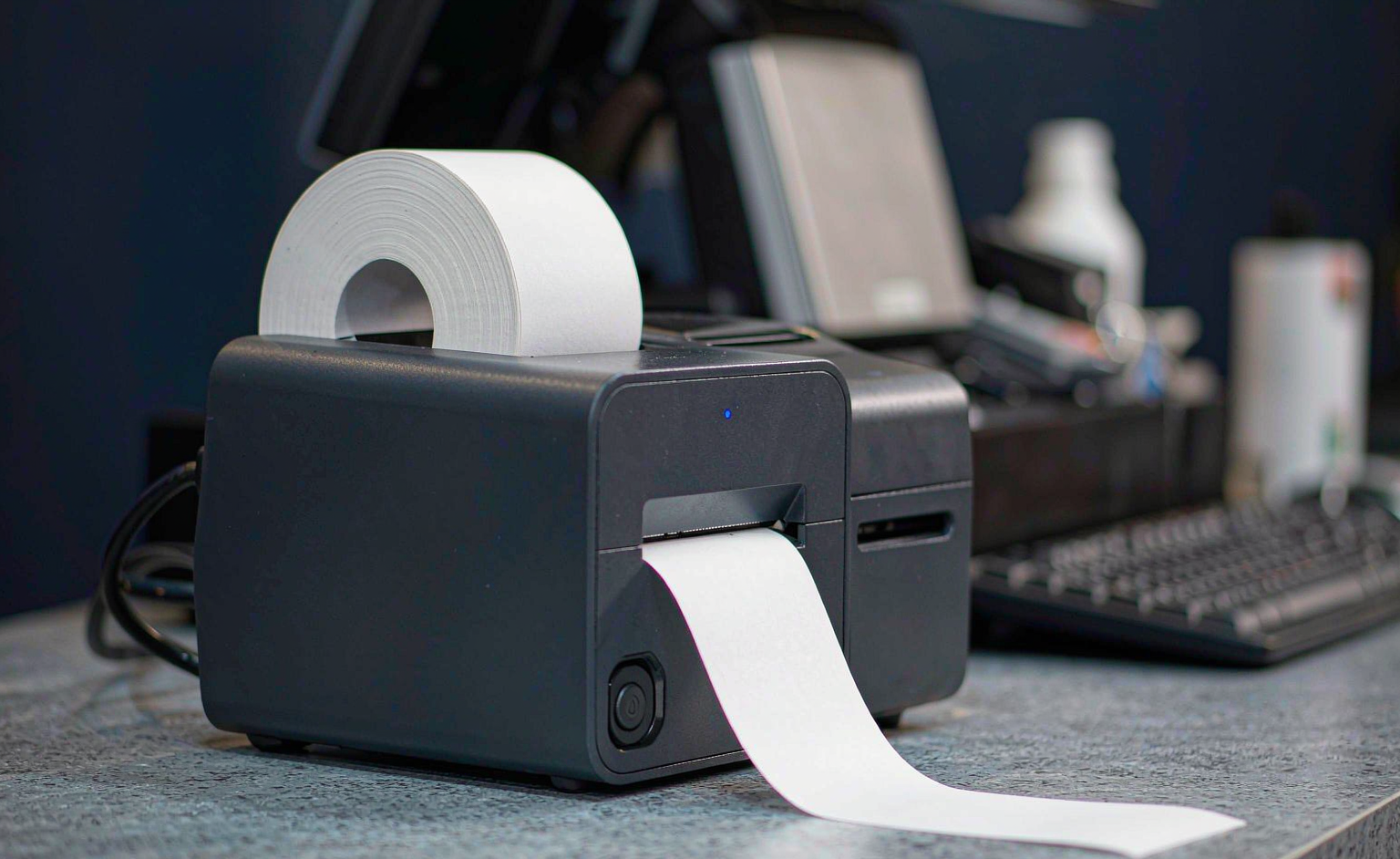
A POS printer that stops mid-shift is almost never a dead machine. Power, cable, paper, driver and routing faults all present the same way — as nothing coming out — which is why the parts-swap approach wastes hours. You replace the roll, then the cable, then the printer, and the fault was a print queue in the terminal the whole time.
This guide works in the opposite direction. It starts with a thirty-second check that localises the fault to one layer, then takes each layer in order: paper and the printhead, the connection, the driver and the print queue, and the routing inside your POS. It finishes with the manufacturer’s answer on when a printer is worth repairing and when it is not. If you only want the short version, our in-order troubleshooting checklist covers the same sequence on a single page; what follows is the full version, with the detail each layer deserves.
What Exactly Is It Doing?
Six different faults all look like “not printing”, and the fix is different for each. Identify which one you have before touching anything:
| What you see | What it usually means | Start at |
|---|---|---|
| Completely dead — no lights | Adapter, outlet, power switch | Power |
| Power light on, nothing prints | Cable, port, driver, queue | Connection / driver |
| Feeds paper, prints nothing | Thermal side loaded away from the head | Paper orientation |
| Prints a test page but not from the POS | Software, routing, queue | POS routing |
| One station prints, another does not | Routing rules, station assignment | POS routing |
| Prints, stops, prints again | Thermal protection or a marginal adapter | Power / hardware |
The 30-Second Self-Check
Before opening any settings panel or reinstalling a driver, run this sequence. It does not repair anything — it tells you which layer owns the fault, so you stop swapping parts that were never the problem. Most “not printing” calls are resolved at steps one to three.
| Order | Check | Pass looks like | Fail points to |
|---|---|---|---|
| 1 | Power indicator | Steady light, not flashing | No light: outlet or adapter. Flashing: an error state, not a power fault |
| 2 | Paper and cover | Roll seated, lid closed firmly | Empty roll, reversed roll, or a lid that is not fully latched |
| 3 | Cable at both ends | Seated firmly, link LED lit where fitted | Loose, damaged, or a dead port |
| 4 | Print queue | Empty, or draining normally | A stuck or offline queue quietly absorbing jobs |
| 5 | Self-test | A clean status page prints | The fault is inside the printer: power, media or mechanism |
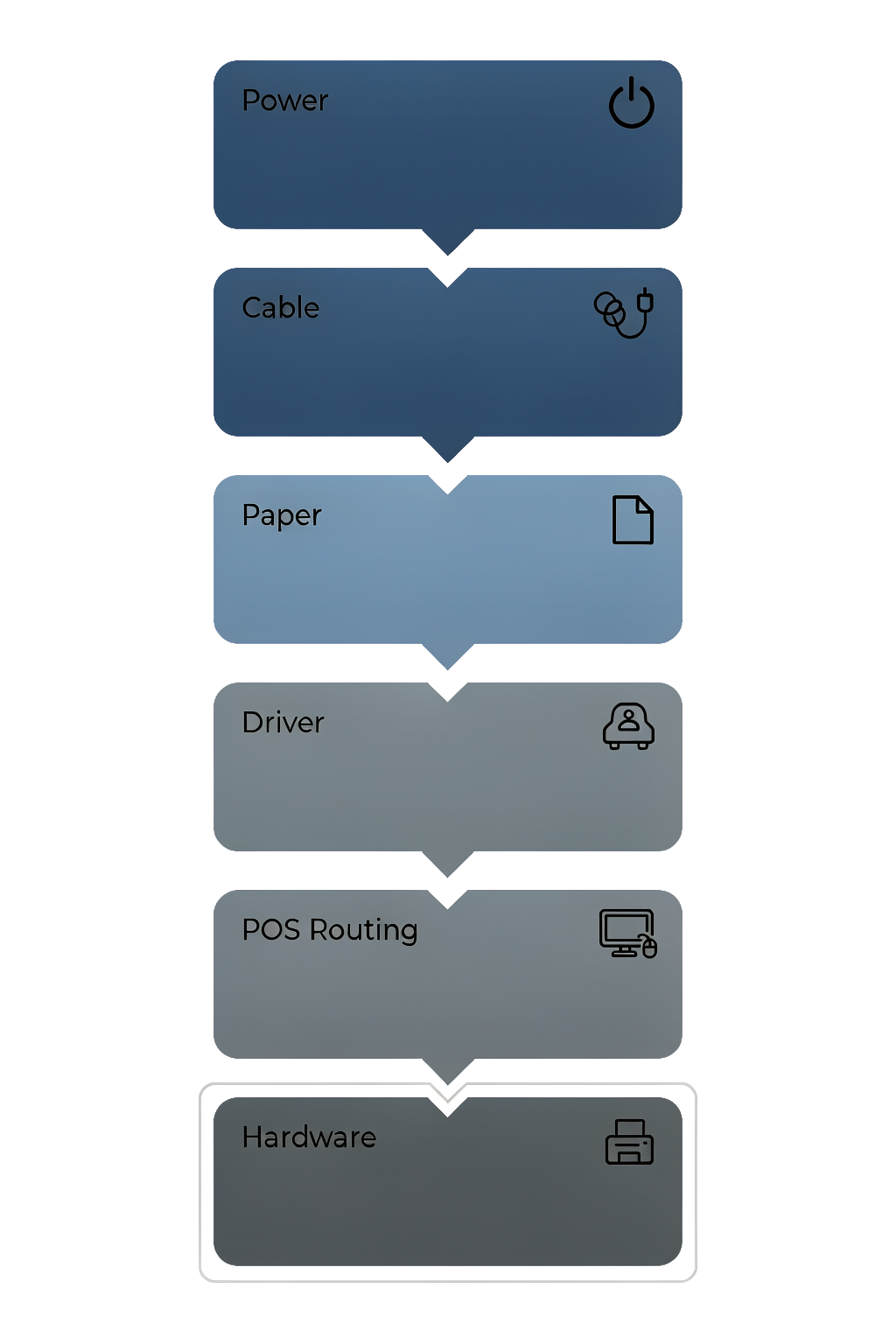
If every check passes and the printer still produces nothing, the fault is almost always in the software layer — the queue, the driver or the POS routing — rather than in the mechanism. The sections below take each layer in the same order.
The Five Checks That Resolve Most Cases
Work down the list. Each check is chosen because it removes more possible causes than the one below it, so stopping early leaves faults unresolved and going out of order wastes time.
1. Confirm power
Check the indicator. A steady light means the printer is powered; a flashing light is usually an error state, not a power fault. Use the correct adapter — printers draw their highest current during printing, so a marginal adapter can power the unit on and still fail the moment a receipt is sent.
An 80 mm thermal printer typically requires DC 24 V at 1 A. A 12 V supply from a different model will light the panel and fail under load. Printers draw their peak current in the first moments of a receipt, which is why a failing adapter shows up as a printer that resets the instant printing starts. That reset pattern is far more common than a failed mainboard, and a spare adapter rules it out at no cost.
2. Reseat and swap the cable
Unplug and reconnect at both ends. If a spare cable is available, swap it rather than testing the original — a cable that fails intermittently will pass a quick inspection. Move the connection to a rear port or a powered hub if the current port is shared.
On an Ethernet printer the link LEDs beside the port settle the physical layer in one glance: no light means no link, and no driver reinstall will change that. On a network printer, also confirm the address the driver is using still matches the printer.
3. Check paper and the paper path
Confirm the roll is not empty and is loaded so the thermal side faces the printhead. Scratch the paper lightly with a fingernail — a dark mark indicates the thermal side. A roll sitting on the wrong face will feed smoothly and print nothing.
Two paper specifications matter, and only one of them is printed on the box. Width — 58 mm or 80 mm — decides whether the roll fits the guides. Roll diameter decides whether it turns without binding. Paper that is the right width on an oversized core produces intermittent feeds that look exactly like a failing motor.
4. Test the driver
Remove duplicate offline printer queues, which can absorb jobs silently. Compare the installed driver with the version issued for your model. On serial connections, confirm the baud rate matches. On USB connections, check the port in the driver properties against the port the system actually assigned — a re-enumerated device can move to a new number after a reboot.
5. Check POS routing and printer selection
Confirm the printer is selected and assigned in the POS application. In multi-station setups, a receipt printer can work correctly while kitchen tickets fail because a menu category is unassigned. Check whether the ticket is in a printable state — orders that have not been finalized are frequently held back by the application rather than the printer.
A quick isolation test: send the same document from a second terminal to the same printer. If it prints, the printer and its connection are fine and the first terminal is where the fault lives.
Paper, Jams and the Printhead
Paper is the layer that fails most often and the one most often misread as a hardware fault. A thermal printer has no ink and no ribbon: the only consumable is the roll, and the only part that touches it is the head. Nearly every symptom in this section is fixed with paper, a cleaning swab or a two-minute procedure. If you want the mechanism behind those symptoms first, our explainer on what thermal printers are and how inkless printing works covers the chemistry, the two types and the four failure modes in one place.
| Symptom | What is actually happening | The fix |
|---|---|---|
| Feeds smoothly, prints nothing | Thermal side faces away from the head | Reload with the coated side toward the head — scratch test |
| Faded or light output | Low density setting, contaminated head, or off-spec paper stock | Clean the head, raise density, then try a roll from a sealed pack |
| White streaks or missing lines | Coating residue or debris on the head | Clean the head with isopropyl alcohol on a lint-free swab |
| Grinding noise, paper stops mid-receipt | Jam or torn fragment in the paper path | Power off, clear the path by hand — never with a knife |
| Cutter stops halfway, red error light | Auto-cutter jam | Follow the manual’s release procedure |
| Paper skews or curls at the exit | Oversized roll diameter, or paper stored in humidity | Use the specified diameter and keep sealed rolls in dry storage |
Clearing a jam without creating the next one
Power the printer off before anything else — a cutter that retracts while you are working near it is the most common self-inflicted injury in this category. Open the cover, lift the roll out, and clear torn fragments with your fingers.
If the cutter blade is stuck mid-cut, most models expose a release gear or a manual rotation point; turn it in the direction the manual specifies until the blade retracts, then remove the obstruction. Forcing the lid closed over a jam bends the paper guide, and a bent guide produces jams for the rest of the printer’s life. Our auto-cutter guide covers the release procedure model by model.
Cleaning the thermal printhead
Let the head cool completely — it reaches temperatures that burn skin in normal operation. Wipe the print line with a lint-free swab lightly moistened with isopropyl alcohol, moving along the head in one direction rather than scrubbing, and let the alcohol evaporate fully before restoring power.
In a counter environment printing a few hundred receipts a day, cleaning every two to four weeks is usually enough. A kitchen, a multi-lane store, or anywhere adhesive label stock passes the head needs a weekly routine, because adhesive residue is the fastest way to lose print quality. Paper grade matters as much as cleaning: our thermal printer guide for retail receipts covers paper specification and the maintenance routine in full.
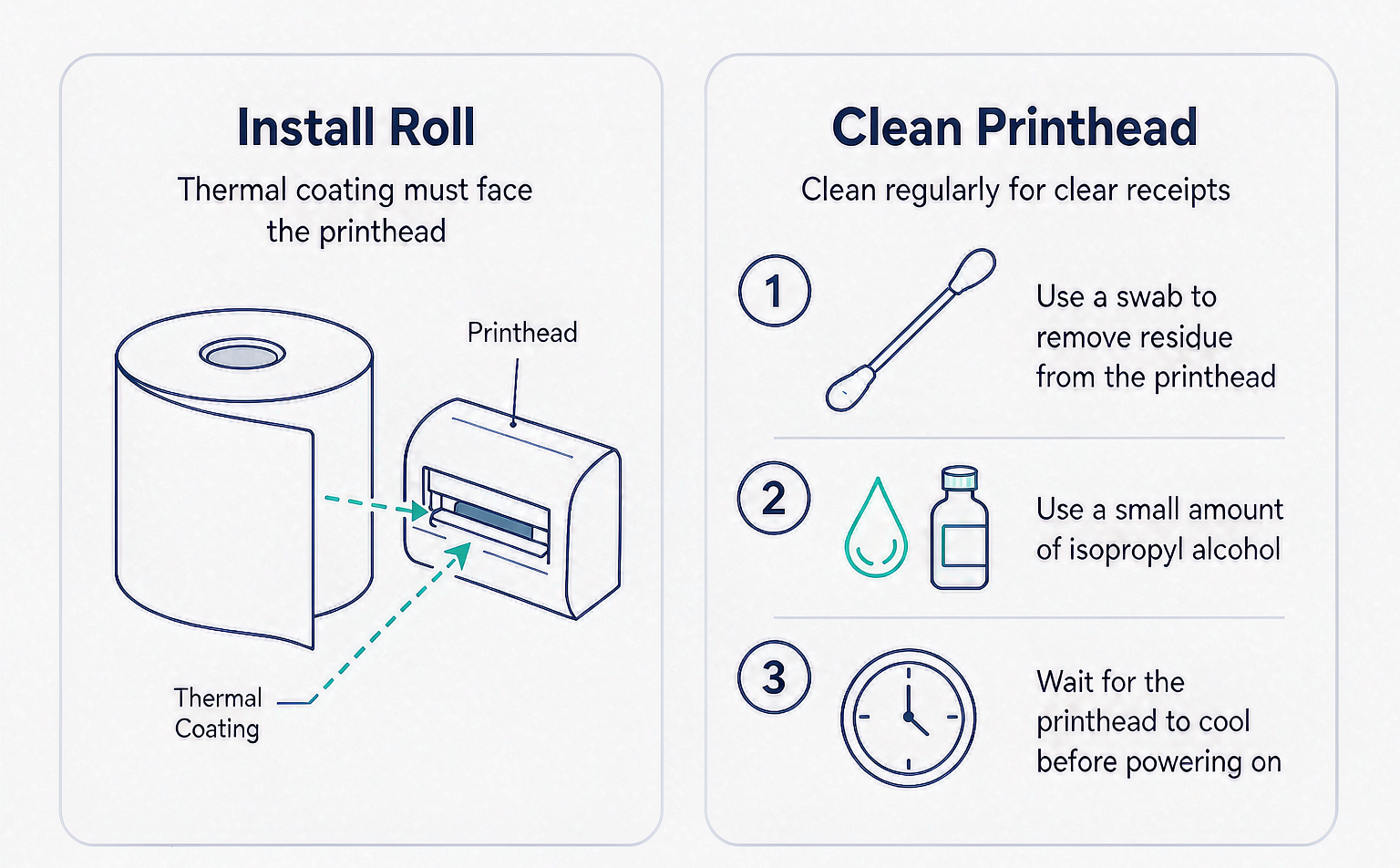
If output stays faded after cleaning, a density change and a fresh roll, the head itself is wearing out — that is a consumable with a measurable life, and it belongs in the repair-or-replace decision rather than in the maintenance routine. The faded receipt guide separates settings from head wear, and the blank paper guide covers roll orientation in more depth.
The Connection Decides the Fix: USB, Ethernet, Bluetooth and Serial
A printer that powers on and self-tests but never receives a job is a connection problem, and the interface determines which single check settles it. The rows below are ordered by how often each interface fails in the field.
| Interface | Where it fails first | The check that settles it |
|---|---|---|
| USB | Port re-enumeration after a reboot | Compare the port in the driver with the port the system actually assigned; swap the cable |
| Ethernet | IP change after a router restart | Print the configuration page, compare its address with the driver’s port, then reserve the IP |
| Wi-Fi | SSID or password change, guest-network isolation | Confirm printer and POS share a subnet and credentials — not just the same building |
| Bluetooth | Pairing lost after sleep, an update, or a second device claiming it | Forget the pairing everywhere, re-pair on the owning device, test after a sleep cycle |
| Serial (RS-232) | Baud rate or parity mismatch | Match the driver to the printer’s DIP settings — see the serial port guide |
Ethernet: the overnight failure
Ethernet produces the most confusing symptom in this whole guide: a printer that has worked for months and then vanishes overnight. Dynamic addressing is almost always the cause. When the router restarts it may hand the printer a different address, and the POS keeps sending jobs to the old one.
Print the configuration page, update the address in the POS, then create a DHCP reservation for the printer’s MAC address so the assignment survives every future restart. Ten minutes of prevention removes an entire class of “it just stopped working” calls.
Bluetooth: an ownership problem more than a range problem
Bluetooth failures cluster around ownership. A mobile printer that has been paired to a phone, a tablet and a terminal will silently follow whichever device claimed it last. Forget the pairing on every device that no longer owns the printer, re-pair on the one that does, and confirm only one terminal is sending to it. Then test after a sleep cycle — many tablets drop the link on sleep and do not restore it.
Drivers, Print Queues and POS Routing
This is the layer that looks like a broken printer and almost never is. The operating system test page is the dividing line: if it prints, the mechanism, the cable and the port are all fine, and the fault lives in the queue, the driver or the POS configuration.
| What you see | What it means | The fix |
|---|---|---|
| Job stuck at the top of the queue | Port mismatch, or an offline queue holding the spool | Delete the job, restart the spooler, confirm the port |
| Two printers listed, one marked offline | A ghost queue quietly absorbing the jobs | Remove the duplicate and set the correct queue as default |
| Random characters instead of text | Wrong driver, or a baud rate mismatch | Reinstall the vendor driver — see the gibberish guide |
| Test page prints, POS receipts do not | The POS is pointed at another printer | Reassign the printer in the POS settings |
| Receipts fine, kitchen tickets missing | Menu category not routed to the station | Assign the category to the correct station printer |
Restart the spooler before anything deeper
On Windows, the print spooler is worth restarting before any deeper work: it clears stuck jobs that survive a printer power cycle, it takes ten seconds, and it changes nothing you would have to reconfigure. Stop the service, clear the queue, start it again, and resend one test job.
POS routing is its own layer
POS routing is the one layer the printer manufacturer cannot see. A receipt printer can work at the counter while kitchen tickets fail, because the menu category producing those tickets was never assigned to the station printer. When only one document type is missing, check the routing table before touching the printer.
The drawer is part of the same conversation. Because the cash drawer is driven through the printer, a printer fault and a drawer fault can be the same fault — and a drawer that will not kick while receipts print fine has its own short list of causes in the drawer will not open guide.
Is It the Printer or the System?
The self-test settles it in under a minute, and it is the single most useful thing you can run before ordering any part.
Run the self-test
Power the printer off. Hold FEED down and switch the power on while holding it. Release the button as soon as printing begins. The strip prints the model, firmware version, interface type, default parameters and supported barcode types.
Read the result
- Self-test prints, POS does not — the fault is in the cable, driver, or POS routing. Do not touch the mechanism.
- Self-test also fails — the fault is in the printer itself: power, paper, or mechanism.
That one result changes what you do next, which is why it comes before any hardware decision. If the self-test prints and you are still stuck, the complete printer diagnostic guide continues into the error-light codes and the full six-layer method.
Repair or Replace: The Manufacturer’s View
Most printer faults are resolved on site. A smaller set belongs with a service center, and knowing which is which prevents a small fault from becoming an expensive one.
| Situation | The better call |
|---|---|
| Fails the self-test, no lights, adapter confirmed good | Service — mainboard or power module |
| Output stays faded after cleaning and a density change | Service — printhead near end of life |
| Cutter jams repeatedly after the documented release procedure | Service — cutter mechanism |
| Works, but needs daily resets to stay alive | Replace — this failure pattern only worsens |
| Out of warranty and the quote approaches a new unit’s price | Replace |
The two numbers behind that decision
From the factory side, two numbers decide most of this. The first is the printhead’s rated life, quoted in kilometers of paper rather than years — 100 km is a common rating, and a store printing 200 receipts a day at roughly 200 mm each consumes about 15 km a year, so in a lightly used unit the head is rarely the first thing to fail.
The second is the auto-cutter’s cycle rating, which a busy quick-service location can exhaust in two to three years. Neither number is a defect; both are consumables with a measurable life, which is why a cutter and a head appear on a specification sheet as cycles or kilometers rather than as a warranty in years. Knowing which one you are approaching turns an urgent breakdown into a planned part. Our POS printer range publishes both ratings on every model page for exactly this reason.
Prevent the Next Failure
Nearly every fault in this guide is cheaper to prevent than to resolve mid-shift. These habits matter more than any single maintenance task:
- Match the adapter to the model. A marginal supply passes at idle and fails mid-receipt, which reads as an intermittent fault.
- Label every cable. A labeled data and power cable turns a future fault into a two-minute check.
- Reserve the printer address. An address change after a router restart silently breaks the print queue.
- Hold a spare roll and a spare cable. They eliminate most same-day downtime.
- Clean the head on a schedule. A two-minute wipe on a fixed date beats a diagnostic session on a busy Saturday.
When replacement is the better answer, volume and lane criticality decide whether a site holds a spare printer or a service contract. Where a single lane is the whole business, keep a spare; where a site runs many lanes, a contract is usually cheaper. And if you are specifying paper for a fleet of printers, the thermal printer guide lists the roll specifications that prevent most of the faults above.
Frequently Asked Questions
Why is my POS printer not printing receipts?
The most common causes are a cable that is not fully seated, a paper roll loaded with the non-thermal face toward the printhead, a duplicate offline print queue absorbing jobs, and a station that is no longer assigned in the POS application. Running the self-test — hold FEED while powering on — separates a printer fault from a cable, driver or routing fault in under a minute, and it should always be the first check.
Why does my printer feed paper but print nothing?
Thermal paper only prints on one side. If the roll is loaded with the non-thermal face toward the printhead, the printer feeds smoothly and produces a completely blank strip. Scratch the paper lightly with a fingernail: a dark mark indicates the thermal side. If the paper is correctly oriented and the output is still blank, clean the printhead with a cotton swab lightly moistened with alcohol.
How do I fix a POS printer that prints faded receipts?
Work through four things in order: clean the printhead, raise the density setting, load a fresh roll from a sealed pack, and confirm the adapter is the one rated for the model. A marginal power supply lightens output before it fails outright. If the self-test strip is also faint, the head or the paper is the cause; if the self-test is sharp and only POS receipts are faint, look at the density setting in the driver.
How do I run a self-test on a receipt printer?
Power the printer off, press and hold the FEED button, switch the power on while continuing to hold FEED, then release it as soon as printing begins. The self-test strip prints the model, firmware version, interface type, parameter defaults and supported barcode types. The same method applies to 58 mm and 80 mm units, and to both built-in and standalone printers.
Why does my POS printer print gibberish characters?
Gibberish is a communication fault, not a printing fault. The usual cause is a driver that no longer matches the printer — often after an operating system update — or a baud rate mismatch on a serial connection. Reinstall the current driver for your exact model, and on a COM-port printer confirm the driver’s baud rate matches the printer’s DIP setting. The mechanism is fine; it is decoding data it was never meant to read.
Why does my POS printer keep going offline?
On a network printer the usual reason is a changed IP address. When the router restarts it can hand the printer a new address while the POS keeps sending jobs to the old one. Print the configuration page, update the address in the POS, and create a DHCP reservation for the printer’s MAC address so the assignment survives future restarts. On a Bluetooth printer, going offline is more often a pairing-ownership problem than a range problem.
How do I clear a paper jam in a receipt printer?
Power the printer off first, then open the cover and remove the roll. Clear torn fragments from the paper path with your fingers — never a knife, which scores the roller and creates the next jam. If the auto-cutter is stuck mid-cut, turn the manual release gear until the blade retracts before removing the obstruction. Close the cover firmly, reload the paper and run a self-test to confirm the path is clear.
How often should I clean the thermal printhead?
In a retail counter printing a few hundred receipts a day, every two to four weeks is usually enough. A kitchen, a multi-lane store, or any environment using adhesive label stock pushes residue onto the head much faster and needs a weekly routine. Clean with a lint-free swab and isopropyl alcohol after the head has cooled, and always after a label jam.
When should I replace a POS printer instead of repairing it?
Replacement is usually the better commercial answer when a printer requires constant resetting, jams repeatedly within a shift, or has already had a mainboard or cutter replaced. At that point the cost of lost lane time exceeds the cost of a replacement unit. Whether a site holds a spare printer or a spare terminal depends on transaction volume and how critical each lane is.