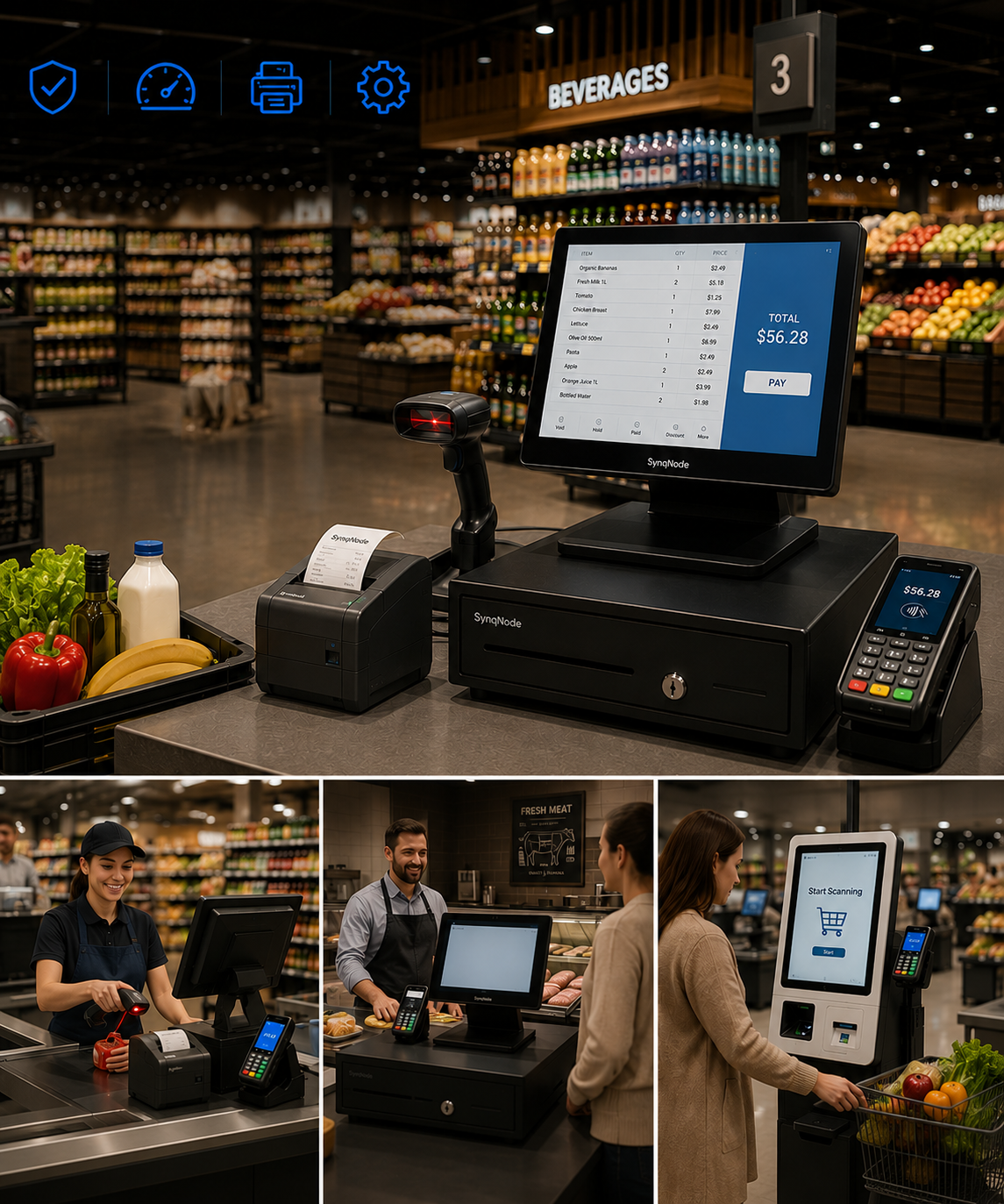
An EPOS system is not a terminal. It is five components that have to agree with each other, plus the counter they sit on. Buyers who spec the terminal carefully and leave the rest to whoever answers the phone end up with a lane where the printer cannot drive the drawer, the scanner needs a driver nobody can install, and there are two sockets for four devices. Whether the document calls the result an EPOS system or a POS system changes what a supplier assumes is included, which is set out in EPOS versus POS.
This is the component list, slot by slot, with the interface each one presents and the power it draws. The numbers come from our own specification sheets, and every figure is something you can check against the model page before you put it in a purchase order. The vocabulary around it, where till, register and PDQ do not mean what a spec sheet says, is decoded in what an EPOS till is.
The short answer: five slots
| Slot | What it contributes | Standard interface | Powered by |
|---|---|---|---|
| 1. Terminal | Runs the POS application and hosts every other port | USB, RS-232, RJ45, RJ11 drawer, HDMI, VGA, audio | External 12 V DC adapter |
| 2. Receipt printer | Prints the customer copy and drives the drawer | USB, RJ45, RS-232, Bluetooth | External 24 V DC adapter (desktop) or battery (mobile) |
| 3. Cash drawer | Holds and secures cash | RJ11 or RJ12 kick-out | Nothing of its own, it pulses from the printer or terminal |
| 4. Customer display | Shows the running total to the customer | Powered from the terminal, USB or serial | Terminal |
| 5. Scanner | Reads the barcode | USB HID, USB virtual COM, or RS-232 | USB bus power, or 5 V DC supply on serial |
Two things in that table cause more installation problems than everything else combined. The drawer takes no power socket of its own, and the customer display is not a separate product you order. Both are covered below.
Slot 1: the terminal, and what its port set really contains
Our thirteen terminal models — seven Android, six Windows — share one I/O layout. That is deliberate: a buyer who adds a second store should not have to relearn the back of the machine. The serial port is the line that varies most from model to model, and the specification lines that change with the board are set out separately, because two units in the same cabinet can differ there.
| Port | What the range provides | Status |
|---|---|---|
| USB | 4 to 6 ports, USB 2.0 and 3.0 mix depending on model | Standard |
| Serial (RS-232) | 1 port, configurable to 3 at order; the SN-B10 ships with 2 | Standard |
| LAN | 1 × Gigabit Ethernet, RJ45 | Standard |
| Wi-Fi and Bluetooth | Wi-Fi 5 and Bluetooth 5.0 | Optional, specify at order |
| Cash drawer | 1 × RJ11 | Optional on most models |
| HDMI | 1 × video out | Optional |
| VGA | 1 × video out | Standard |
| Audio | 1 × line-out, 1 × mic-in | Standard |
Power is a single 12 V DC input fed by an external adapter that takes 100–240 V AC. A 5 A adapter covers a box-only terminal; the model with a built-in 80 mm printer ships with 7 A. That is the whole power story for slot one, and it is worth noting because it means the terminal never needs a different supply in a 110 V market.
The whole range is on the POS terminal category page; the Android line is collected under all-in-one POS terminals.
Three terminal configurations, not thirteen separate machines
The thirteen models differ in screen size, processor and housing. For a bill of materials they collapse into three configurations, and the choice between them is a printing decision rather than a computing decision.
- Box only. No printer inside. The lane gets a separate receipt printer on USB or Ethernet. This is the right default when receipts are itemized, because you want a 80 mm machine with an auto cutter and you want to be able to replace it without touching the terminal.
- All-in-one with a 58 mm printer. SN-D3 prints 58 mm at 90 mm/s with no cutter. One device, one socket, one thing to fail. Correct for counters that hand over a short token rather than a document.
- All-in-one with a configurable 58 mm or 80 mm printer. SN-P10 and SN-W50 print 160 mm/s with a full or partial auto cutter, and the paper width is set at order. This is the configuration that removes a device from the lane without removing the receipt the customer expects.
The trade-off is repair surface. An integrated printer that fails takes the whole terminal out of service, where a separate printer fails on its own. Stores with a spare terminal on site can accept that; single-lane stores should think about it twice.
Slot 2: the receipt printer, by form factor
Receipt printers are the component with the widest spread of interfaces and power, because the range covers a counter, a belt and a delivery bag.
| Form factor | Interface | Power | Drawer port |
|---|---|---|---|
| 58 mm desktop (SN-POS5890) | USB, Bluetooth optional | DC 12 V / 3 A | No |
| 80 mm desktop (SN-POS8250 / 8360 / 8370) | USB, RJ45 Ethernet, Bluetooth optional; the 8250 adds RS-232 | External adapter, DC 24 V / 2.5 A from AC 100–240 V | Yes, RJ-11 at 12 V / 1 A |
| 58 mm mobile (SN-POS5809 / 5810 / 5811) | USB, Bluetooth | 7.4 V / 2,000 mAh Li-ion, charged at DC 5 V / 2 A | No |
| 80 mm mobile label (SN-POS8006B) | USB Type-C, Bluetooth, Wi-Fi optional | 7.4 V / 2,000 mAh, charged at DC 5 V / 1 A | No |
| 4-inch label (SN-LP9220 / 9250 / 9260) | USB, RJ45 Ethernet, Bluetooth or Wi-Fi optional | AC 100–240 V in, DC 24 V / 2.5 A out | No |
Note the split in the drawer column. Among our receipt printers, only the 80 mm desktop family carries a drawer port, and that single fact decides which printer can sit on a cash lane. A 58 mm desktop printer is a fine printer and cannot open a drawer, so a lane that takes cash needs the 80 mm machine or a terminal with a drawer port of its own.
The full range is on POS printers, and the width decision has its own comparison in 58 mm vs 80 mm thermal printers.
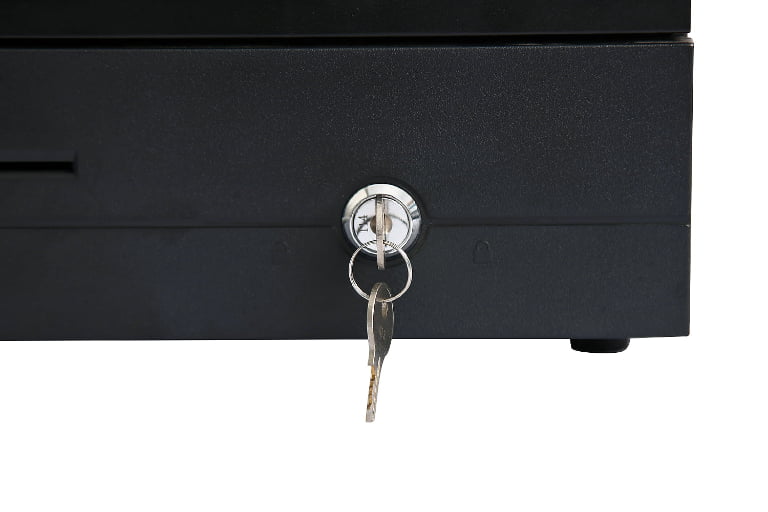
Slot 3: the cash drawer takes no power socket
This is the single most common surprise at installation. A cash drawer has no power supply. It holds a solenoid that fires when it receives a short pulse over an RJ11 or RJ12 cable from the printer or the terminal, and it reports open or closed back through a built-in micro-switch.
That has three consequences for the bill of materials:
- The drawer adds no socket and no adapter to the lane. The power budget is unaffected by how many drawers you buy.
- The drawer cannot be specified without knowing which device will drive it, because that device has to have a powered drawer port and put 12 V on it.
- A drawer is not a spare-parts item in the usual sense. Because it is passive, the failure that matters is mechanical — the latch, the rollers and the solenoid — not electrical.
Our drawer range covers flip-top, compact and heavy-duty formats with 12 V triggers and auto-sensing solenoids that also accept a 24 V pulse from third-party printers, which is what lets one drawer SKU sit behind mixed printer brands in a converted estate. The range is on cash drawers.
Slot 4: the customer display is an option, not a SKU
Buyers routinely go looking for a customer display product page and come back confused. In our range the customer display is configured with the terminal, not bought alongside it, and it comes in two families:
| Type | What the range offers | When it is the right choice |
|---|---|---|
| LCD, touch or non-touch | 11.6" and 15.6" on most models; 10.1" and 12" on the SN-B20; 4.99" on the SN-D3 | You want promotional content, a signature pad or a tip prompt on the customer side |
| VFD | 2 lines × 20 characters | You want the total visible in daylight and nothing else |
The VFD has not died out for a reason. It stays legible under shop lighting that washes out an LCD, it draws a fraction of the power, and it never needs a firmware update. If the only job is showing the customer what they are about to pay, it does that job with fewer failure modes than a second screen.
The category page is POS customer displays, and it is worth reading as a specification guide rather than an order form, because the display arrives attached to the terminal you configure.
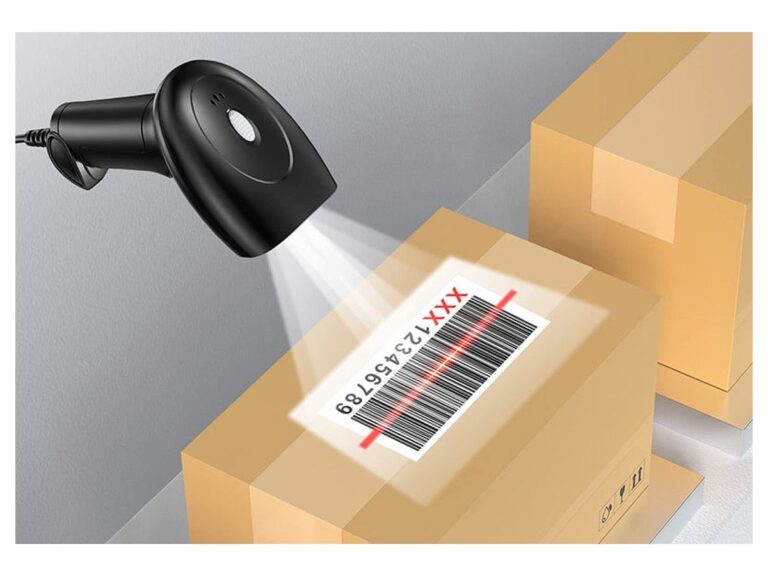
Slot 5: the scanner runs off the USB port
Every scanner in our range runs at 5 V DC and draws between roughly 120 and 400 mA, which means a cabled scanner is powered by the port it is plugged into. No adapter, no socket, no power budget line.
| Interface | What it means in practice | When to specify it |
|---|---|---|
| USB HID | Presents as a keyboard. No driver, works after any OS update | Default for Windows and Android terminals |
| USB virtual COM | Presents as a serial port over USB. Needs software to open the port | Legacy POS software that expects a COM port |
| RS-232 | Real serial, needs a 5 V supply and a free COM port on the terminal | Long cable runs, or a terminal that is out of USB ports |
The practical rule: standardize on USB HID unless your software insists otherwise. HID survives operating system updates without a driver, and a mixed estate of HID and virtual-COM scanners is one of the more reliable ways to create support tickets that nobody can reproduce.
Current draw matters more than it sounds. Six scanners on a terminal through an unpowered hub will brown out on a cold morning, and the fault presents as "the scanner sometimes misses the first scan". The range is on barcode scanners, and the POS peripherals page collects the rest of the counter hardware.
The power budget for one lane
| Device | Draw | Sockets |
|---|---|---|
| Terminal, box only | 12 V DC, 5 A adapter | 1 |
| Terminal with built-in 80 mm printer | 12 V DC, 7 A adapter | 1 |
| Separate 80 mm printer | 24 V DC, 2.5 A adapter | 1 |
| Customer display | From the terminal | 0 |
| Cash drawer | Pulsed from printer or terminal | 0 |
| Scanner | USB bus power, 120–400 mA | 0 |
So a lane with a terminal and a separate printer needs two sockets, and a lane with an all-in-one terminal needs one. Multiply by lanes, add one for the network switch and one for whatever the store already has behind the counter, and you have the electrical scope — which is the number an electrician will ask for and the number that never appears in a hardware quotation.
Two small things worth planning. An all-in-one terminal halves the socket count, which in a converted store is often the reason to choose it over a better-specified separate setup. And adapters should not share a single cheap power strip across six lanes; inrush from six 24 V adapters at switch-on is the usual cause of a breaker that trips once a week and never during a test.
Mounting: settle it before the counter is drilled
Mounting is where an otherwise correct bill of materials turns into a joinery problem.
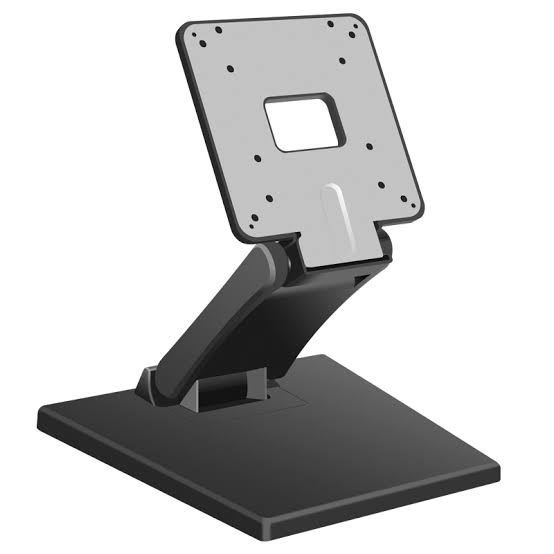
- Terminals. Every touch screen POS in our range has VESA mounting points. The P90 series is the exception that needs stating: there is a dedicated VESA version of the P90, while the standard P90 and the P90P are not VESA. If the plan involves a pole or a wall arm, that has to be the version on the order, not a bracket bought afterwards.
- Printers. Desktop units stand on the counter, so the counter needs a clear footprint of roughly 190 × 145 mm for an 80 mm machine and less for a 58 mm one. Mobile units need a charging position, not a mount.
- Drawers. Under-counter, on a bracket, with enough clearance for the tray to travel and for the bill compartments to be reached. A drawer that opens into a cupboard door is a drawer that jams.
- Customer displays. Pole or VESA, and the pole needs a hole in the counter that is much easier to cut before the surface goes on.
- Scanners. A hands-free base takes counter space in front of the operator; a handheld lives in a holder at arm's length. Both are choices, not defaults.
Stands and mounting hardware are on POS stands and mounts.
Interfaces worth standardizing across an estate
A single store can survive a mixed bag of interfaces. Twenty stores cannot, because every variation becomes a spare part, a driver and a line in a support script.
- Scanners on USB HID. Driver-free, survives OS updates, and a replacement unit works the moment it is plugged in.
- Printers on Ethernet where the printer is not next to the terminal. Kitchen and back-office printers belong on the network, not on a USB cable that someone will eventually trip over.
- One COM port reserved for the scale or the customer display. RS-232 is configurable up to three ports on most of our terminals, which is generous until you have used them.
- VGA only for legacy. It is there because installed estates still need it, not because a new lane should use it.
The same bill of materials at three sizes
| Component | 1–2 lanes | 6 lanes | 20 lanes |
|---|---|---|---|
| Terminal | All-in-one, one model | All-in-one, one model, plus one spare on site | Two configurations: staffed lane and service desk |
| Printer | Inside the terminal | Inside the terminal on express, separate 80 mm on full lanes | Separate 80 mm on full lanes, network-attached for back office |
| Drawer | One per cashier | One per cashier plus one float | Pooled, with a reconciliation station |
| Customer display | Optional VFD | LCD on the lanes where queue visibility matters | LCD across the estate |
| Scanner | One handheld | One per two lanes, fixed in-counter on high volume | Fixed plus handhelds for shelf work |
The lane count that fills this table comes from a capacity calculation rather than a floor plan, which is what how many POS terminals a store needs works out. Use it first, then come back and size the BOM against the answer.
The sequencing question — which stores first, how to pre-stage, how to train — is on the multi-store rollout guide.
Five mistakes in an EPOS bill of materials
- Ordering terminals without counting sockets. The terminal is one adapter; the printer is a second. Six lanes is twelve adapters, and the counter has four outlets.
- Assuming the drawer needs power. It does not, but it does need a device with a powered drawer port, and that is a different constraint.
- Mixing USB HID and virtual COM scanners. Both work; not together, not without a support script that explains which is which.
- Treating the customer display as a separate purchase. It ships as part of the terminal configuration, so it has to be in the terminal specification or it does not exist.
- Specifying a printer that cannot drive a drawer. A 58 mm desktop printer is cheaper and smaller and will not open the till.
Frequently asked questions
What are the five components of an EPOS system?
Terminal, receipt printer, cash drawer, customer display and barcode scanner. The terminal hosts the software and the ports, the printer produces the receipt and usually drives the drawer, the drawer holds the cash, the customer display shows the total, and the scanner reads the barcode. Card payment hardware is a sixth component in most markets but is usually supplied by the acquirer rather than the till vendor.
Does a cash drawer need its own power supply?
No. A drawer is passive: it fires when the printer or the terminal sends a short pulse over an RJ11 or RJ12 cable. That is why a drawer adds no socket to the lane, and why you cannot specify a drawer without first knowing which device will drive it.
Can a 58 mm receipt printer open a cash drawer?
Not on our models. The 58 mm desktop printer, the SN-POS5890, carries USB and optional Bluetooth and has no drawer port. The drawer connects to an 80 mm printer or to the terminal. Confirm the port and its voltage on the specific model before assuming a printer can open a till.
What voltage do our terminals and printers put on the drawer port?
12 V. That is the figure to design around, and it is why our drawer solenoids auto-sense: a drawer that only accepted 12 V would fail on a third-party printer that puts 24 V on the same connector. Match the drawer to the device driving it, and check the output of any printer from another supplier before pairing.
Is the customer display a separate product?
In our range it is a terminal option, not a separate SKU. You choose an LCD panel in one of several sizes, or a two-line VFD, at the time the terminal is configured. The category page is worth reading as a guide to the options rather than as a product you add to a cart separately.
Do our POS terminals support VESA mounting?
All touch screen POS models do. The exception is the P90 series: there is a dedicated VESA version of the P90, while the standard P90 and the P90P are not VESA. If the installation plan depends on a pole or a wall bracket, that version has to be specified on the order.